Component Versioning
Overview
ARD uses an immutable component system to ensure data integrity, enable seamless collaboration, and maintain complete version history. This approach means you'll never lose data and teammates can work simultaneously without conflicts.
Component Immutability
Core Principle
Every component in the system is immutable. Once created, a component's core parameters cannot be modified — any change creates a new version with the changes applied. However, metadata fields like Notes, Tags, and Hidden/Archived status can be updated directly on the existing version without creating a new one.
Why Immutability?
- Data Preservation: You never lose previous configurations. Every version is permanently stored.
- Conflict-Free Collaboration: Multiple users can work on the same component simultaneously without overwriting each other's work.
- Simulation Reproducibility: If you need to reference a vehicle from a previous simulation, it will always be available exactly as it was.
Cascading Updates
When you edit a component, the immutability principle cascades upward through the component hierarchy:
graph TD
    A[Edit Chassis] --> B[New Chassis Created]
    B --> C[New Vehicle Created]
    C --> D[Vehicle References New Chassis]

    %% Dark-mode friendly styles
    style A fill:#2f5d8a,stroke:#9fbce0,color:#e6eef7
    style B fill:#1f6f5b,stroke:#7fd1bd,color:#e8f6f2
style C fill:#1f6f5b,stroke:#7fd1bd,color:#e8f6f2Example: If you edit a chassis component: 1. A new chassis component is created with your changes 2. A new vehicle component is automatically created 3. The new vehicle references the new chassis 4. The original chassis and vehicle remain unchanged in the system
This automatic "bubble up" behavior occurs when you click Save.
Version History Access
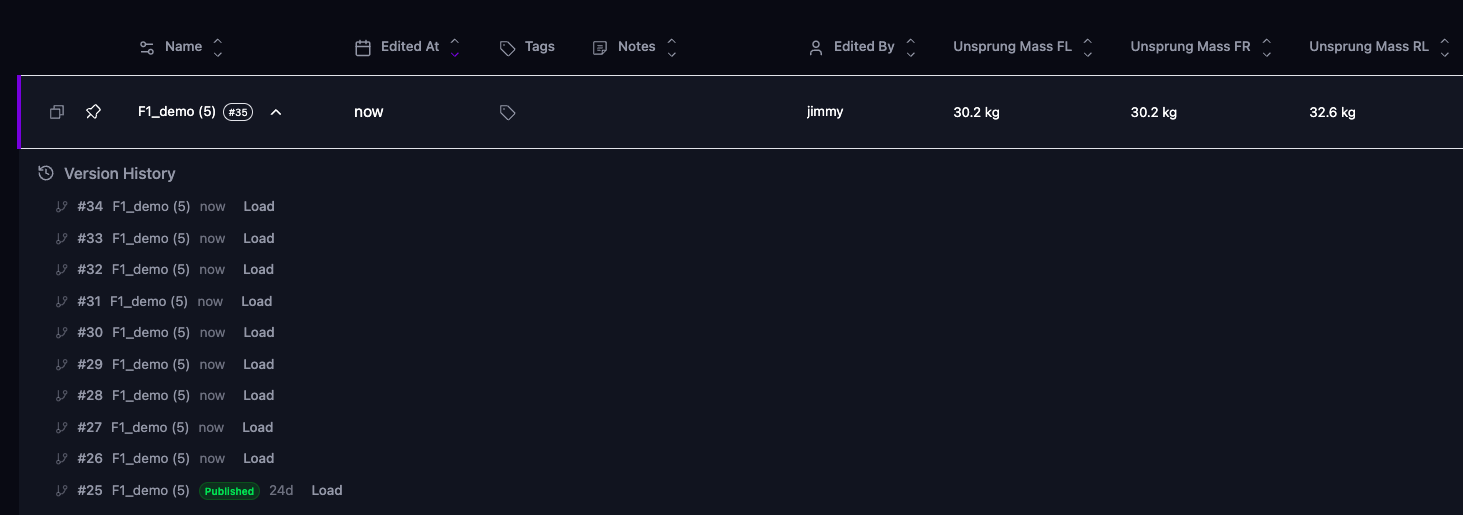
Every component includes a version history dropdown showing all previous versions.
Components are identified by their version number, which is displayed next to each version in the history. If you know you want to return to a specific configuration, remember its version number and name.
Collaborative Workflows
Scenario: Two Teammates Editing Simultaneously
If two teammates wish to edit the same vehicle at once, this is totally okay.
Key Points: - Each teammate creates their own version of the vehicle - No conflicts or overwriting occurs
Initial Component State
When you load a vehicle from a template: - All components start as v1 - They appear immediately in the setup selector - Any edits will create new versions
Best Practices
Organization
- Use descriptive names when creating new namespaces
- Remember significant version numbers if you frequently reference specific versions
Team Coordination
- Communicate version numbers when you are updating a component
- Use new namespaces when exploring different directions to avoid conflicts
Version Management
- Don't worry about clutter - the system handles all versions efficiently
- Use version history to compare changes and understand evolution
Common Workflows
Creating a Track-Specific Variant
- Load your base vehicle configuration
- Create a new name space for the variant
- Edit components for track requirements
- Both variants now available in setup selector
Recovering a Previous Configuration
- Open the component in setup selector
- Click the version history dropdown
- Find the version by ID or position in history
- Load that version
Next Steps
- Review Component Hierarchy to understand parent-child relationships
- Explore the Setup Selector for managing components
- Learn about Tags to organize your library