Tree View
The Tree View provides a hierarchical overview of your entire vehicle model, showing all components and their relationships at a glance. It's your roadmap for navigating through the various subsystems of your vehicle setup.
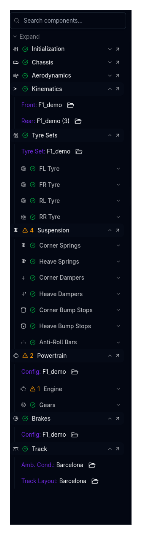
What is the Tree View?
The Tree View displays your currently selected vehicle configuration as an expandable tree structure. Each component can be:
- Clicked to navigate directly to that component's page
- Expanded to reveal child components
- Folder-click to open the Setup Selector for quick setup switching
Quick Navigation
The Tree View is the fastest way to jump between different vehicle subsystems without using the navigation bar menus.
How to Use the Tree View
Navigating to Components
- Click the component name to open that component's configuration page
- Click the chevron icon (>) to jump to the component page.
- Click any component folder icon to open its Setup Selector
Opening the Setup Selector
Click on any component folder icon in the tree to quickly access the Setup Selector for that specific component. This is faster than navigating to the component first and then opening the selector.
Parent-Child Navigation
The Tree View shows the parent-child relationships between components:
- Parent components (e.g., Suspension) contain multiple child components
- Child components (e.g., Corner Springs, Dampers) are nested under their parent
- Click the chevron to expand/collapse parent components
Vehicle Component Structure
Your vehicle model is organized into the following main components:
Core Components
Initialization
Base vehicle parameters and initial conditions: Camber, Toe, Ride heights, Gaps, Pressure, Mass
Chassis
Vehicle geometry, inertia, and compliance
Aerodynamics
Aerodynamic maps, coefficients, and balance - Aerodynamic Offsets - Wing offsets, or aerodynamic polynomial offsets
Kinematics
Pickup-point geometry and motion characteristics
Tyre Set
Tire configuration and models - Tyre Models - Individual tire characteristics and parameters
Suspension System
The suspension tree contains all spring, damper, and anti-roll bar components:
- Corner Springs - Front left, front right, rear left, rear right
- Heave Springs - Front and rear heave springs
- Corner Dampers - Individual damper settings
- Heave Dampers - Front and rear heave dampers
- Corner Bump Stops - Compression limiters
- Heave Bump Stops - Heave bump stop settings
- Anti-Roll Bars - Front and rear ARB configurations
Powertrain
Different powertrain components appear based on your vehicle type:
For ICE (Internal Combustion Engine) vehicles: - Engine - Power, torque, and engine maps - Gears - Transmission ratios - Efficiency - Powertrain efficiencies - Differential - Differential settings and maps
For EV (Electric Vehicle) vehicles: - Battery - Battery capacity and characteristics - Motor - Electric motor specifications - Gears - Transmission ratios (if applicable) - Efficiency - Motor and drivetrain efficiency - Differential - Differential settings
Brakes
Braking system configuration - Calipers - Brake caliper specifications
Track
Track selection and configuration for simulations - Ambient Conditions - Temperature, humidity, and air pressure - Track Layout - Track geometry
Common Workflows
Reviewing Your Setup
Use the Tree View to quickly scan which components have custom configurations:
- Expand all parent components
- Look for components with custom names (indicating modified setups)
- Click through to review or modify
Tracing Vehicle Errors
When a vehicle has a validation error, you can trace it back to the exact change that introduced it. Open the error details from the warnings on the affected component to launch the "When did this error first appear?" view, which scans the vehicle's version history to find the source.
The view shows:
- The version where the error was introduced — including when it was saved and who edited it — next to the last working version.
- What changed — a side-by-side comparison between the last working version and the first failing version, so you can see exactly which values changed.
- All active errors — if the vehicle has more than one error, each is listed so you can investigate them individually.
Best-guess attribution
If the source of an error cannot be pinned down with certainty, the view marks the result as a best guess and shows an "attribution may not be exact" note. Use the comparison to confirm the change yourself.