Activity Center
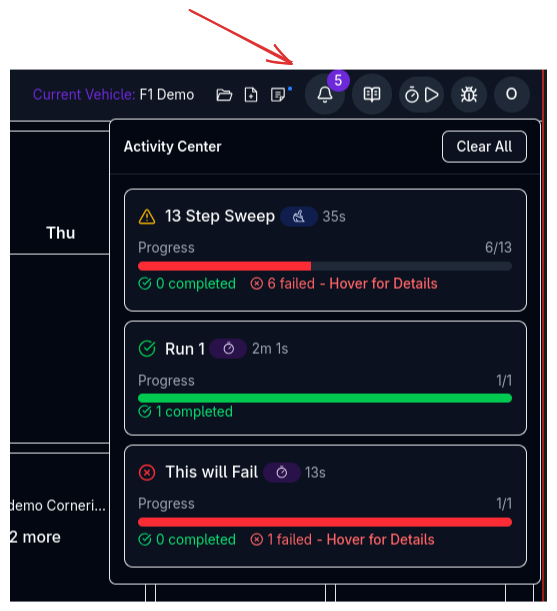
The Activity Center displays real-time updates for your simulations and platform notifications in one unified feed.
Overview
The Activity Center shows:
- Running Simulations - Live progress updates with runtime counters
- Completed Simulations - Successful runs ready for analysis
- Failed Simulations - Errors with hover-to-view details
- Platform Notifications - Team invitations, announcements, and system messages
Accessing the Activity Center
Click the bell icon in the top-right corner of the navigation bar. The badge shows the total number of active items (unread notifications + active simulations).
Activity Feed
All activity is shown in a single feed, sorted by most recent first.
Simulations
Each simulation shows:
- Simulation Name - Your vehicle configuration name
- Simulation Type Badge - QSS, Kinematics, Ride, etc.
- Status Icon:
- 🔵 Spinning loader - Preparing (sweeps only — vehicle variants are still being built before the run starts)
- 🔵 Spinning loader - In Progress
- ✅ Green check - Complete
- ⚠️ Yellow warning - Partial Success (some tasks failed)
- ❌ Red X - Failed
- Runtime - Live counter for running simulations, total duration for completed
Progress Tracking
For Sweep simulations with multiple tasks:
- Progress Bar - Visual breakdown of completed (green) vs failed (red) tasks
- Task Count - "42/50" showing completed out of total
- Success/Failed Breakdown - Number of completed and failed tasks
- Error Details - Hover over "Hover for Details" to see error messages
Notifications
Each notification shows:
- Title - Notification subject
- Message - Detailed content (may include links)
- Timestamp - "Just now", "5m ago", "2h ago", "3d ago"
- Unread Indicator - Blue dot for unread notifications
Common notification types:
- Team invitations
- Platform announcements
- System messages
Organisation Invitations
Organisation Invitation notifications are clickable — selecting one opens Organisation Settings, where you can accept or decline it. The same invitation can also be accepted or rejected from Settings → Teams.
If you were invited before you had an ARD account, this notification arrives as soon as you finish signing up, so an invitation sent ahead of registration is not lost.
Managing Activity
Remove Individual Items
Hover over any item to reveal the X button, then click to remove it:
- Notifications - Marks as read and removes from feed
- Simulations - Clears from activity center (results remain available in Results)
Clear All
Click Clear All at the top of the Activity Center to:
- Mark all notifications as read
- Clear all completed and failed simulations from the feed
Results Preservation
Clearing simulations from the Activity Center does not delete your results. Access them anytime from the Results pages.
Status Types
Preparing
Shown right after you launch a sweep, while each vehicle variant is built in the background. The runtime counter is already live at this point; the task progress bar appears once building finishes and the run itself starts. You can keep working while a sweep is preparing.
Running (In Progress)
Blue spinning loader with live runtime counter. For sweeps, shows real-time progress bar as tasks complete.
Completed (Success)
Green check icon. Simulation finished successfully. All tasks completed without errors.
Partial Success
Yellow warning icon. Some tasks succeeded, others failed. Common in large sweeps where certain parameter combinations may be invalid.
Failed
Red X icon. Simulation encountered an error and stopped. Hover over "Hover for Details" to see the error message.
Best Practices
Monitor Long-Running Simulations
Keep the Activity Center open during large sweeps to monitor progress and catch failures early.
Check Error Details
When simulations fail, hover over the error details to understand what went wrong before re-running.
Regular Cleanup
Use "Clear All" periodically to keep your Activity Center focused on active work.
Quick View
Click a simulation to view it straight away.
Next Steps
- Launch simulations from Sim Dropdown
- Set up parameter studies with Sweep
- Analyze results in Trace View
- Manage team notifications in User Settings