Results Upload (Telemetry)
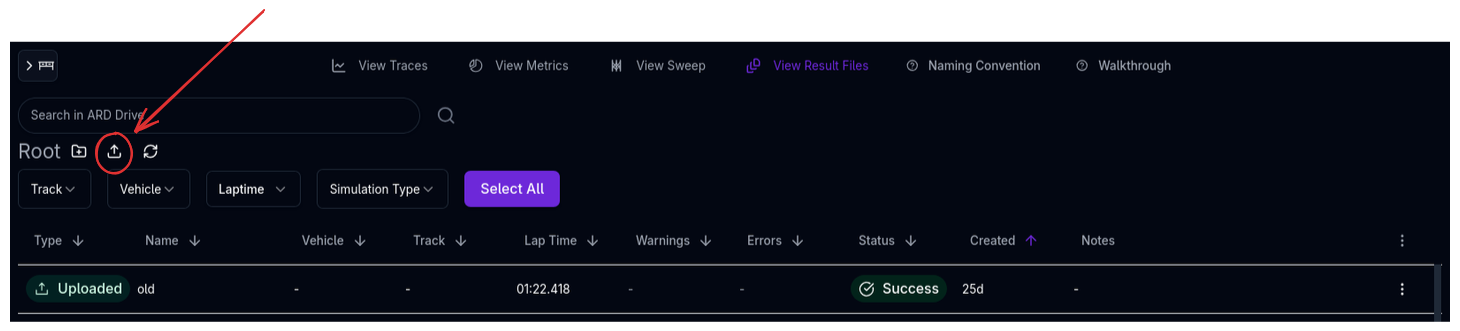
The Results Upload feature lets you import real-world telemetry data from your data logging system into ARD. Once uploaded, telemetry can be overlaid with simulation results in the Trace View for correlation, validation, and driver analysis.
Overview
Telemetry upload is a guided, multi-step process that takes you from a raw data file to a fully mapped result in ARD. The system handles:
- File parsing — Reads CSV, Excel, and other tabular formats, including multi-sheet workbooks
- Channel detection — Automatically identifies common channels (speed, distance, g-force, etc.) from column names
- Unit mapping — Lets you specify the unit for each column so ARD can convert to its internal SI representation
- Postprocessing — Options for lap selection, distance zeroing, and data cleaning
- Track creation — Optionally generates a track layout from the uploaded telemetry
How Racing Teams Use It
- Simulation correlation — Upload logged data from a test day and overlay it with simulation results to validate the vehicle model
- Driver analysis — Import telemetry to view speed traces, g-g diagrams, and ride height data alongside simulation predictions
- Track creation — Generate a track layout from GPS or curvature data in the telemetry, avoiding manual track entry
- Baseline comparison — Upload a reference lap and compare it against simulated setups to quantify improvements
- Data archiving — Store telemetry alongside simulation results in the same folder structure for easy retrieval
Supported File Formats
| Format | Extensions | Notes |
|---|---|---|
| CSV | .csv |
Comma-separated values |
| TSV | .tsv, .txt |
Tab-separated values |
| Excel | .xls, .xlsx |
Multi-sheet support — select which sheet to use |
| PRN | .prn |
Fixed-width or space-separated |
| Racelogic VBOX CSV | .csv |
VBOX exports are normalized automatically, including inline units, degree-minute GPS coordinates, and lap information when available |
The maximum file size is 50 MB. Large files are uploaded in chunks with a progress indicator.
Time column parsing
Telemetry uploads support standard numeric time values, clock-style values such as 1:20.612, and logger exports where a colon is used as the decimal separator, such as 1:005. If a mapped column contains a value that cannot be parsed as a number, the upload error names the affected column.
Decimal separator
Files that use a comma as the decimal separator (194,5) are detected and converted automatically on import, so exports from European loggers and spreadsheet settings upload without a re-export. Periods (194.5) work as they always have.
Upload Workflow
The upload is three steps in one dialog: Files, Map channels, Review & upload. The step indicator in the header shows where you are, and Back never discards work — files keep uploading and the mapping keeps every edit.
Step 1: Files
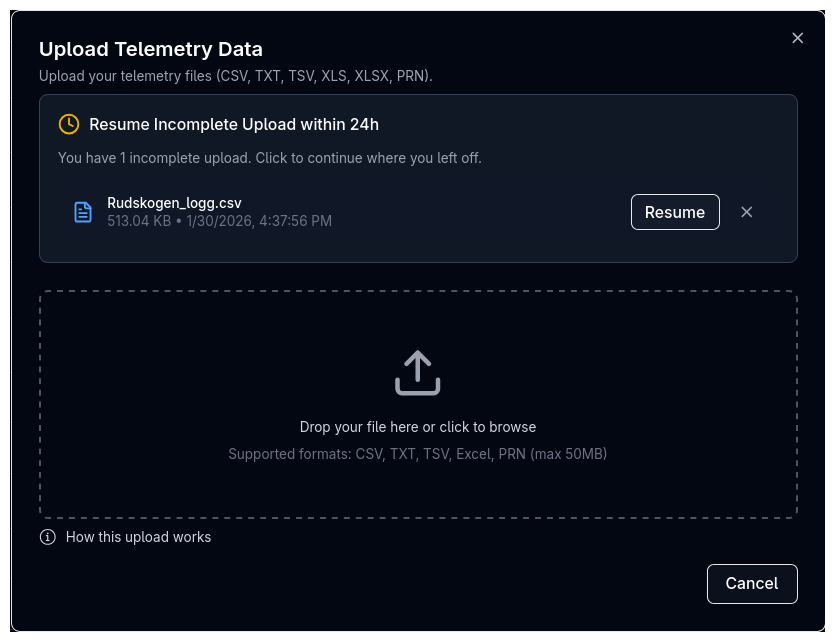
Drag and drop one or more files onto the dialog, or click to browse. A single file uploads, is analysed and opens the mapping step by itself. Several files (or an Excel workbook) stay on the file list while they upload and analyse in the background, so you can name each result, pick sheets, or keep adding files while bytes are in flight. Each row shows its size, column count and row count once analysed, with controls to retry or remove an individual file without abandoning the batch. Back from the mapping step returns to this list to add files to a single-file upload.
You can upload a whole batch in one session — each file becomes its own result, and an Excel workbook expands into a checkbox per sheet so you can pick which sheets to bring in; sheets with no numeric columns are left unchecked.
If a file's columns look nothing like the rest of the batch, the step says so and blocks it — that file belongs in its own session. A file that merely differs by a column or two is allowed through with a warning naming what will be left unmapped.
Resuming Incomplete Uploads
If you have incomplete upload sessions from the last 24 hours, they appear above the drop zone before you add any files. Click Resume to continue where you left off — your channel mappings and unit selections are preserved. Click the × to discard a session permanently.
Step 2: Map channels
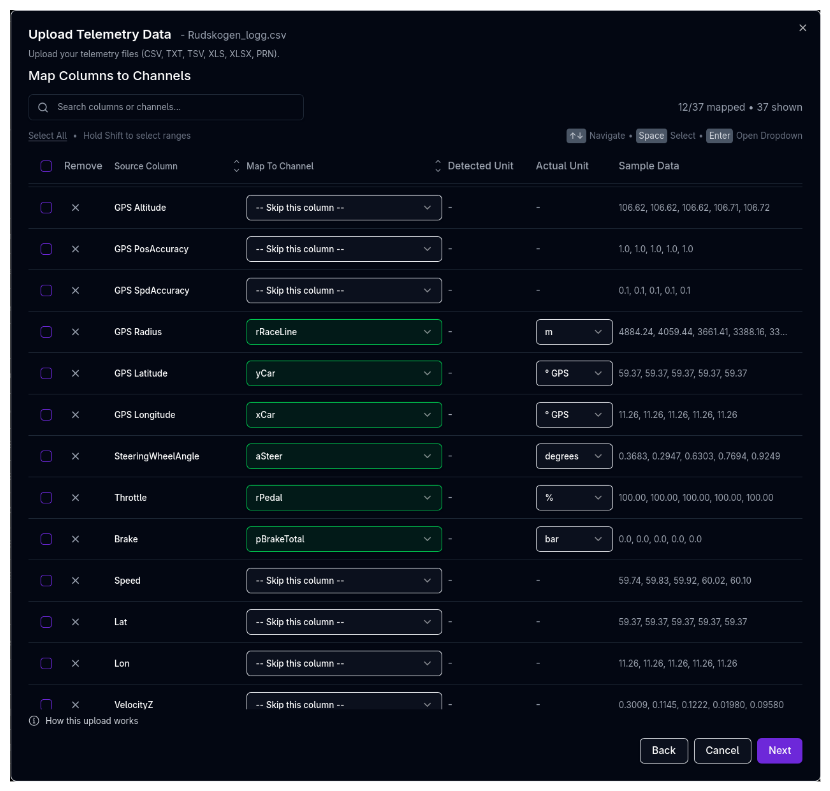
Every column in your file is matched to an ARD channel and a unit. Auto-detection has already run by the time the step opens, so the job is to review — and the Values column is what you review against.
One mapping covers the whole batch
When you upload several files in one session, a single column mapping is applied across all of them, matched by column name. Every file in a session must therefore follow the same column layout. A column present in only some files is left unmapped for the others (you are warned which); a file that shares no columns with the rest has to be uploaded separately.
The Mapping Table
Each row represents one column from your file:
| Column | Description |
|---|---|
| Source column | The header as written in your file. A column auto-detection could not decide is marked with the number of candidates it found |
| Channel | The ARD channel this column becomes (e.g. vCar for speed, sRun for distance). Opens a searchable list showing every channel's unit and description, with the best candidates for this column at the top |
| Unit | The unit the source data is in. ARD converts to SI on import |
| Flip / Zero | Invert the sign, or subtract the first value so the channel starts at zero |
| Values | A sparkline of the analysed rows with their minimum, maximum and mean. This is how you tell km/h from m/s, or a lap counter from lap distance, at a glance. Click the sparkline to open the column as a full plot |
Auto-detection
Column headers are matched to channels by meaning, not by spelling. Vendor prefixes (A_, M_), processing suffixes (Corrected, LPF), corner and axle grammars (FL, LF, Front Left, Front) and the usual synonyms (RH for ride height, SWA for steering wheel angle, pot for damper) are all understood, and the file's own unit text and value range are used to keep look-alike quantities apart — a column in bar is never offered as an angle, and a column that does not increase is never sRun.
- A channel is pre-selected only when the match is confident. Otherwise the column stays unmapped and the channel list shows the candidates it considered, with the reason for each.
- When two channels fit equally well (a "3rd element load" could be the heave spring or the heave damper force), nothing is pre-selected and the row is marked 2 candidates — the choice is yours.
- A channel is never pre-selected for two columns. A low-pass-filtered copy of a column loses to the raw one and stays unmapped.
Units
The unit text in your file is read in any common spelling (deg, °, kph, mph, m/s2, rpm, G, degC…). The border of the unit box tells you where the unit came from:
| Border | Meaning |
|---|---|
| Plain | Read from the file |
| Dashed | Inferred or assumed — the file declared no unit. Where the value range settles it (an acceleration peaking at 3 is in g; a ride height of 0.04 is in metres) the unit is inferred from the values; otherwise the channel's default is assumed. Either way, check it against the Values column |
| Amber | The file declared a unit we could not read (hover to see the text). You must confirm the unit before continuing |
| Red | The unit cannot be converted for this channel. You must change it before continuing |
Changing a column's channel re-reads its unit from the file, so a hand-picked unit never survives onto a different quantity.
Where the mapping comes from
A line above the table says what auto-detection managed ("Auto-detected 34 of 42 columns") and offers the alternatives:
| Action | Description |
|---|---|
| Use that mapping | Shown when an earlier upload of the same format exists: the one covering most of this batch's columns is named, with the count it covers. One click copies its channel and unit assignments. Nothing is applied without the click, and the choice is remembered so the button leads next time |
| Use a previous mapping… / Other uploads… | Choose any earlier upload from a searchable list, each scored by how many columns it covers |
| Re-detect | Re-runs detection over the whole batch and replaces your edits |
| Clear all | Starts from an empty table |
Filters and Bulk Operations
- All / Unmapped / Needs attention — Filter the table. Needs attention collects columns with an unconvertible unit, a channel mapped twice, an unreadable unit text or an undecided auto-detection
- Search — Filter rows by source column name or mapped channel name
- Sort — Click Source column or Channel to sort
- Select — Tick rows (Shift-click for ranges) and Skip selected to clear their mappings at once
- Channel reference — Opens the naming convention guide listing every channel with its unit and description
Keyboard Navigation
| Key | Action |
|---|---|
| Arrow Up/Down | Move focus between rows |
| Enter | Open the channel list for the focused row |
| Space | Toggle row selection |
| Shift + Click | Select a range of rows |
Warnings
Problems are listed in a strip above the table, each a click away from the row it concerns:
- Mapped twice — Two columns share a channel. Click the channel name to show only those rows. One column per channel; you cannot proceed until it is resolved
- Unit can't be converted — A column's unit is not one the converter can apply to its channel. Pick another unit
- Unit text not recognised — The file declared a unit we could not read. Confirm the unit (the assumed one included) before continuing
- No distance, time or speed channel — Without
sRun,tRunorvCarthe result is hard to plot. You can still upload - Lap column without distance — A column is mapped to
NLapbut nothing tosRun; the column may actually hold lap distance.NLapmust be a lap counter (1, 1, 2, 2, …)
Step 3: Review & upload
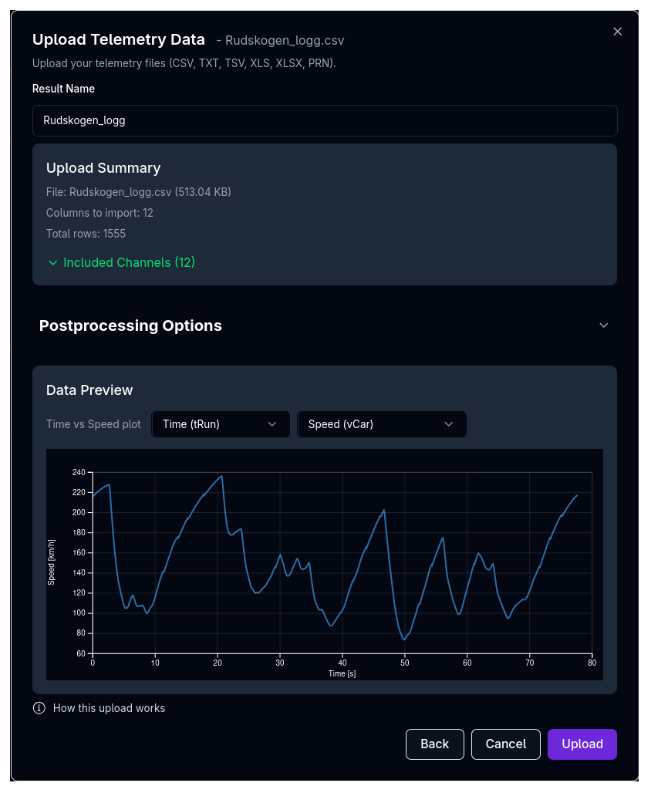
The last step names the result, chooses laps and shows a preview. The preview is decimated to chart resolution but always spans the whole file, so a 4.5 km lap plots as 4.5 km.
Result Name
Enter a name for the uploaded result. This is how it will appear in the File Viewer. When the batch holds more than one file, each has its own name, and a file switcher lets you review every file's preview before uploading. If two results would end up with the same name, the step flags it and offers a one-click Make names unique fix.
Summary
File name and size, the number of rows the result will hold after processing, and the channels it will contain (expandable).
Laps & processing
- Start distance at 0 — Subtract the first distance value (recommended for clean overlay with simulation data)
- One result per lap — For a multi-lap file, split the selected laps into separate results named "… - Lap N"
- Lap selection — Choose which laps to include. The fastest lap is highlighted
Preview
The chart plots one mapped channel against distance, time or speed, in the same units the results desk uses — the axis label is a promise about the upload, not a restatement of the file. If the preview looks wrong, the unit on the mapping step is wrong; go back and fix it there. The preview updates as you change laps and options.
Non-Sequential Distance
If the data contains rows where distance values go backwards (e.g., from a logger reset), the summary shows how many rows will be dropped. This ensures clean, monotonically increasing distance data. Distance logged in whole metres at several samples per metre is not dropped: the repeated values are spread evenly (by time where the file has it) up to the next step. If more than a fifth of the file would be dropped, the step warns you outright — that usually means the column mapped to sRun is not cumulative distance.
Done
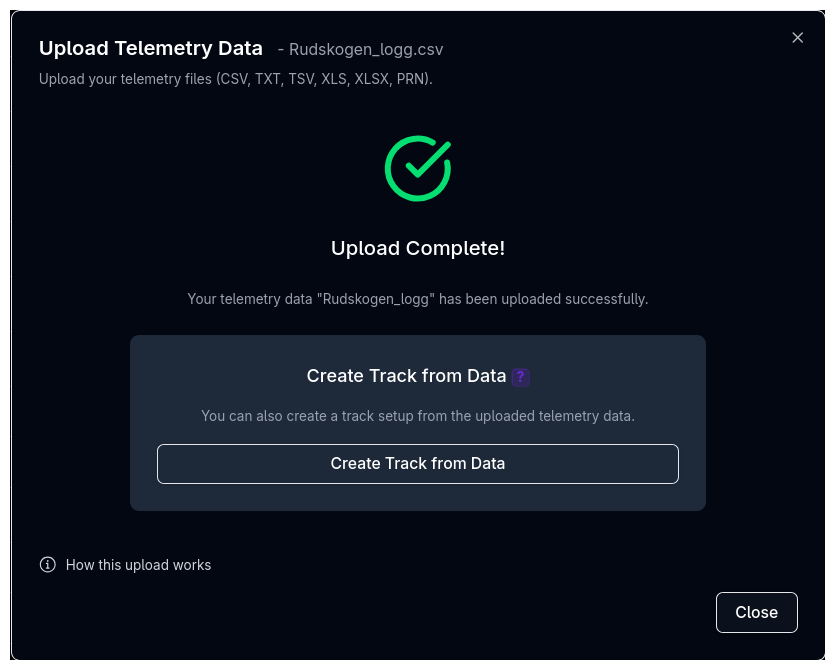
Once the upload finishes, the dialog lists every result created — one per file, or more where a file was split by sheet or by lap. For a single result whose channels allow it, a track can be created from the data here; tracks are otherwise managed from the track setup pages.
Create a Track While You're Here
If you plan to simulate on this circuit and don't already have a track setup, creating one from telemetry is the fastest way. The generated track captures the actual circuit layout including elevation and curvature, which is more accurate than manual entry.
Tips & Best Practices
Consistent Naming
Use a consistent naming convention for uploaded results — for example, include the driver, session, and date (e.g., "Driver A - FP1 - 2024-03-15"). This makes results easy to find later in the File Viewer.
Map the X-Axis Channel
Always map at least one x-axis channel (sRun for distance, tRun for time, or vCar for speed). Without one of these, the data cannot be plotted in the Trace View.
Check Units Carefully
The most common upload issue is incorrect units. If speed is in km/h but mapped as m/s, all values will be off by a factor of 3.6. Read the Values column against the unit — a speed column with a maximum of 300 is km/h, one with a maximum of 85 is m/s — and give dashed (assumed) units a second look.
Reuse Previous Mappings
If you regularly upload files from the same logging system, use Start from → A previous upload on the mapping step. This reuses the channel and unit assignments from a prior upload of the same format.
Resume If Interrupted
If you close the browser or navigate away during an upload, your session is preserved for 24 hours. Return to the upload dialog to resume where you left off.
Use the alignment tool
If your telemetry and a simulation result look shifted against each other when overlaid, use the Align button in the Trace View toolbar — see Distance Alignment.
Related Topics
- File Viewer — Browse and manage uploaded results
- Trace View — Overlay telemetry with simulation data
- Track Configuration — Manage tracks created from telemetry