Track Configuration
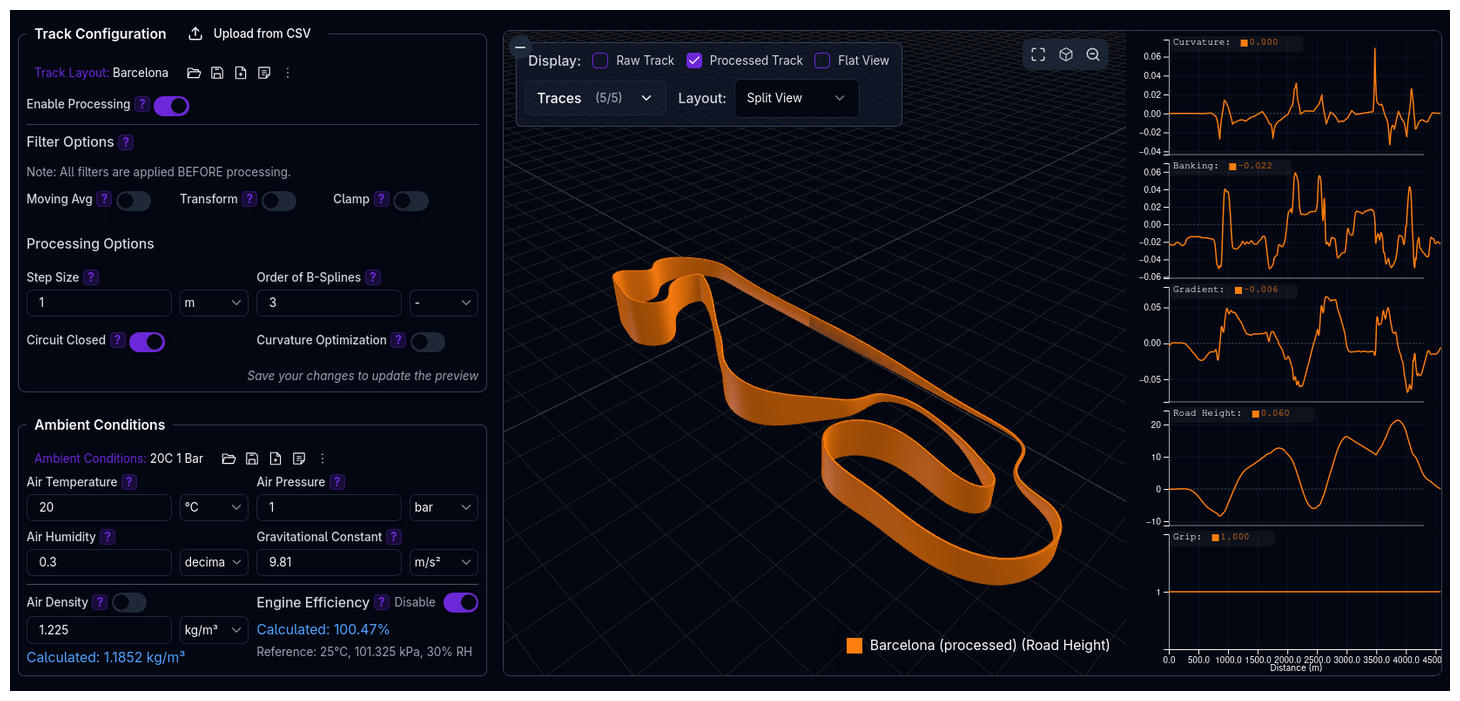
Configure the track for your lap time simulations. Upload track data from CSV, apply filters and processing, and visualize the result.
Overview
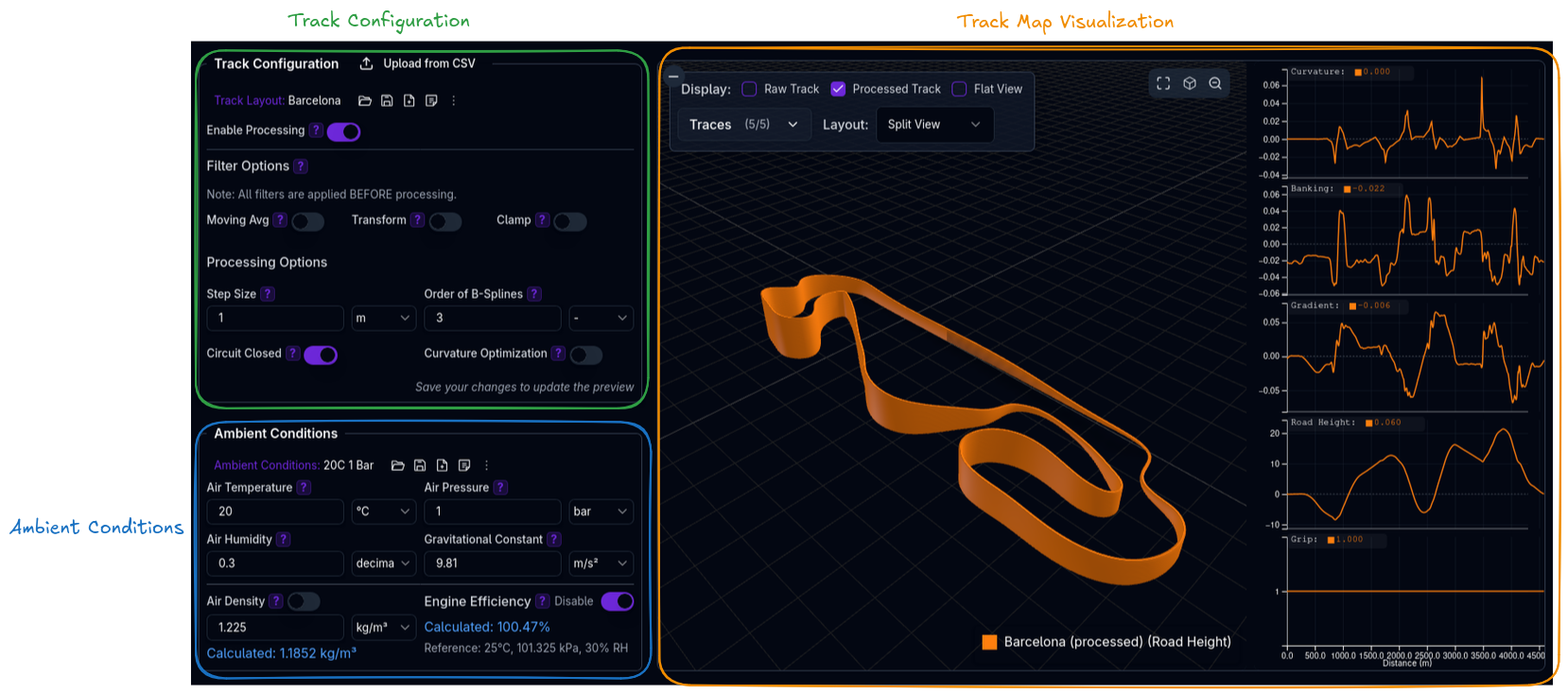
The Track page is split into two columns:
- Left column — Track configuration (library, upload, filters, processing) and Ambient Conditions
- Right column — Track map visualization and trace charts
Track Configuration
The track configuration section uses the standard Setup Command Palette for saving, loading, and duplicating track setups from your library.
Uploading a Track from CSV
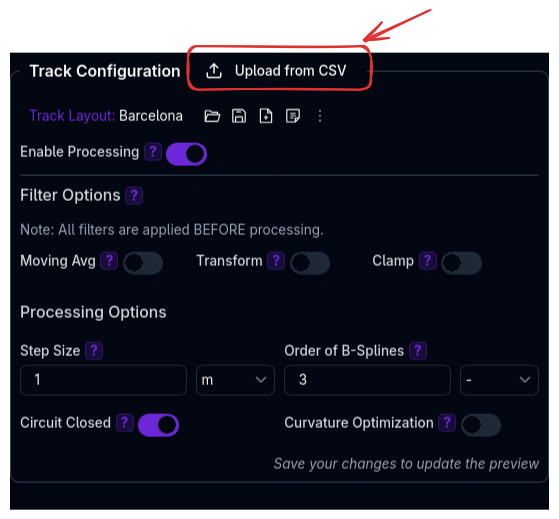
Click the Upload button to open the upload dialog. You can drag-and-drop a CSV file or browse to select one.
CSV Format
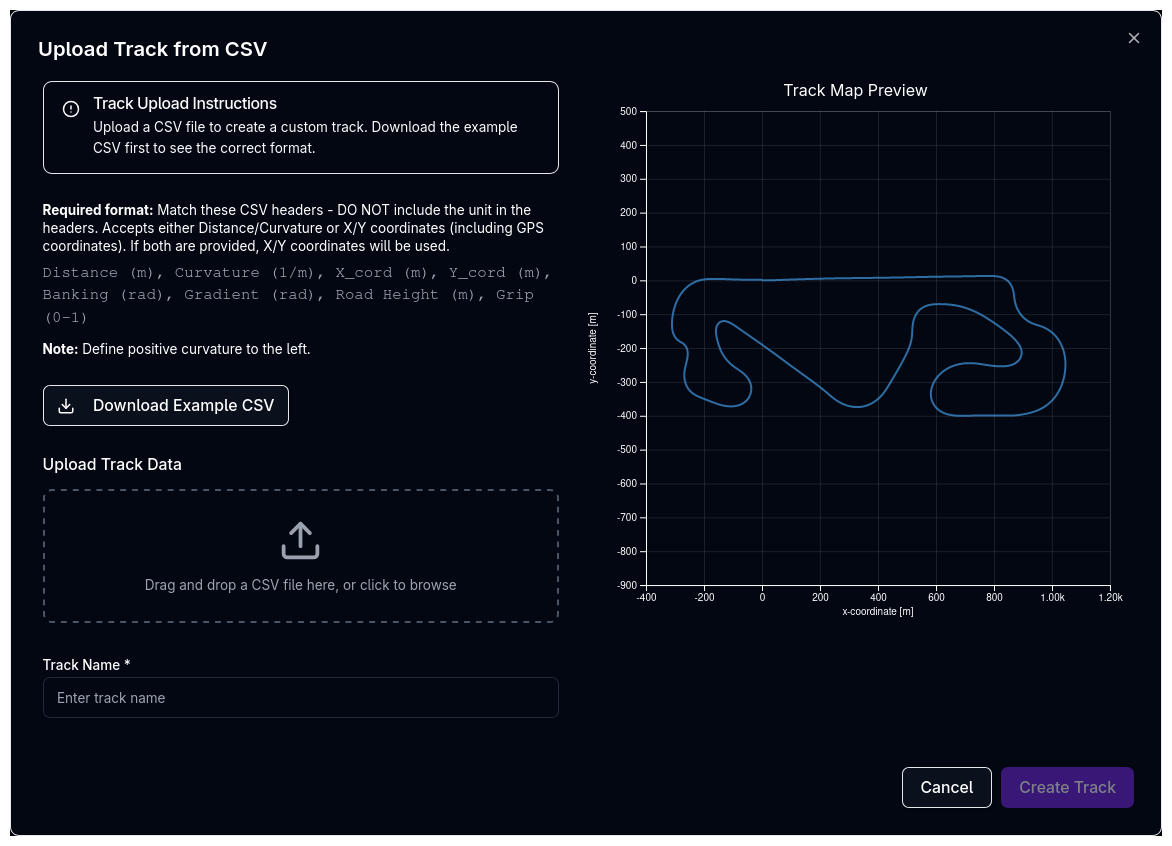
The CSV file must use comma-separated values with column headers in the first row. Do not include units in the headers.
Example headers:
An example CSV file is available for download from within the upload dialog.
Track Data Columns
| Column | Unit | Required | Description |
|---|---|---|---|
| Distance | m | Conditional | Cumulative distance along the track centerline. Required if X/Y coordinates are not provided. |
| Curvature | 1/m | Conditional | Track curvature at each point. Positive = left turn. Required if X/Y coordinates are not provided. |
| X_cord | m | Conditional | X coordinate of the track centerline. Required if Distance/Curvature are not provided. |
| Y_cord | m | Conditional | Y coordinate of the track centerline. Required if Distance/Curvature are not provided. |
| Banking | rad | Optional | Track banking angle. Defaults to 0. |
| Gradient | rad | Optional | Track gradient (slope) angle. Defaults to 0. Auto-calculated from Road Height if provided. |
| Road Height | m | Optional | Elevation of the track surface. Used to derive Gradient if Gradient is not supplied. |
| Grip | 0–1 | Optional | Surface grip multiplier. Defaults to 1. |
Coordinate Input Options
You can provide either Distance + Curvature or X/Y coordinates. If both are provided, X/Y coordinates take priority and Distance/Curvature are recalculated from them.
GPS Coordinates
GPS (latitude/longitude) coordinates are auto-detected and converted to local X/Y in meters. Place latitude values in X_cord and longitude values in Y_cord.
Processing Pipeline
Track data flows through a two-stage pipeline: Filters are applied first, then Processing.
flowchart LR
    A[Raw CSV Data] --> B{Processing Enabled?}
    B -->|Yes| C[Filters]
    C --> D[Processing]
    D --> E[Final Track]
    B -->|No| E
A master toggle Enable Processing controls whether the pipeline runs. When disabled, the raw uploaded data is used directly in simulations.
Filter Options
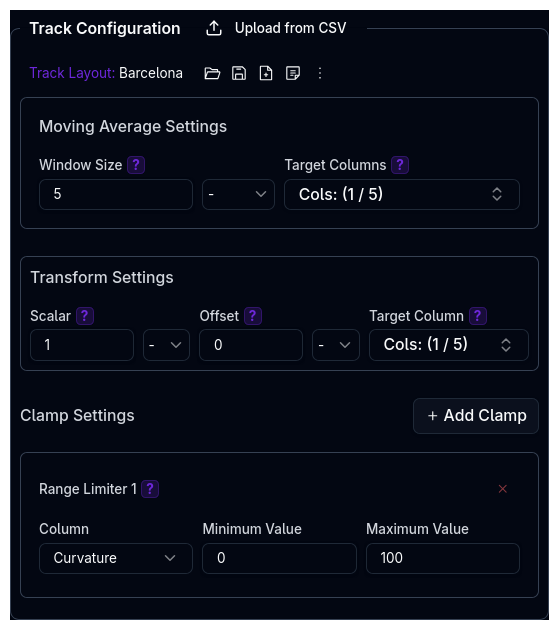
Filters are applied before spline processing. They clean and adjust the raw data.
Moving Average
Smooths noisy data by averaging over a sliding window.
| Parameter | Description |
|---|---|
| Window Size | Number of data points to average over. Larger values produce smoother results. |
| Target Columns | Which columns to smooth: Curvature, Banking, Distance, Gradient, X & Y Coordinates. |
Transform
Applies a linear transformation (scale and offset) to selected columns.
| Parameter | Description |
|---|---|
| Scalar | Multiplier applied to column values. Values of 0.95–1.05 are recommended for loop-closing adjustments. |
| Offset | Additive constant applied after scaling. |
| Target Columns | Which columns to transform. |
Clamp
Limits column values to a specified range, removing outliers. You can add multiple clamp configurations, each targeting a different column.
| Parameter | Description |
|---|---|
| Column | The data column to clamp. |
| Min Value | Lower bound — values below this are clamped. |
| Max Value | Upper bound — values above this are clamped. |
Clamp for Curvature
Clamping curvature is useful for removing GPS spikes or sensor glitches that produce unrealistically sharp corners.
Processing Options
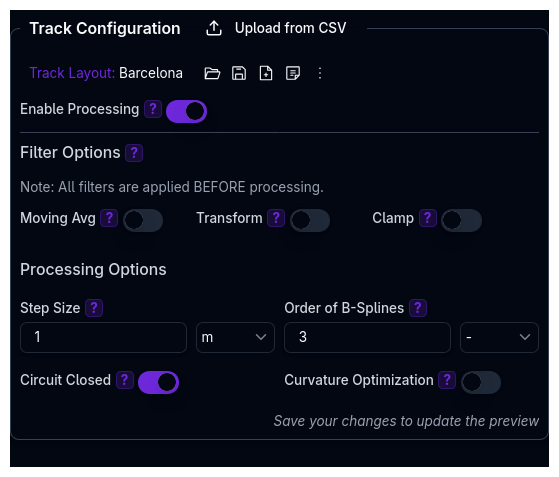
Processing options are applied after filters. They interpolate and standardize the track geometry.
Step Size (m)
The distance increment for interpolated track points. We recommend a step size of 1–3 m. A step size of 3 m is ideal for faster lap time computation, particularly on longer circuits (above ~4 km).
The step size should match or be coarser than the spacing in your supplied data. Setting it finer than your raw data resolution adds noise without improving accuracy.
Step Size and Simulation Granularity
A very coarse step size (e.g., 10 m) produces granular lap simulation results — the solver has fewer points to work with and corner entry/exit speeds become less accurate. Conversely, a very fine step size on a long circuit increases computation time significantly.
Validation: Step size must be ≥ 0.1 m.
Order of B-Splines
The polynomial degree used for spline approximation, from 1 (linear) to 5 (quintic).
| Order | Description |
|---|---|
| 1 | Linear interpolation — no smoothing. Suitable for straight-line tracks only. |
| 2 | Quadratic — not recommended (even orders can produce artifacts with small smoothing). |
| 3 | Cubic — decent default. Good balance of smoothness and fidelity for most circuits. |
| 4 | Quartic — not recommended. |
| 5 | Quintic — highly recommended for larger circuits. Most accurately captures corners and chicanes, especially when combined with Curvature Optimization. |
Choosing the Right Order
- Use order 1 only for straight tracks (constant-curvature or zero-curvature sections).
- Use order 3 as a starting point for general circuits.
- Use order 5 for longer or more complex circuits — it captures tight corner sequences and chicanes more faithfully than cubic splines.
- Odd-degree splines (3, 5) generally behave better than even degrees (2, 4), especially with small smoothing factors.
Circuit Closed
When enabled, the track start and end points are smoothly connected to form a continuous loop. Disable this for non-circuit tracks (e.g., hillclimbs, point-to-point stages).
How the Stretching Method Works
Real-world track data rarely closes perfectly — the last recorded point almost never lands exactly on the first. The closure algorithm corrects this gap without distorting the track shape.
The algorithm works in two phases:
-
Heading correction — It calculates the heading (direction of travel) at every point along the track. If there is a heading error between the start and end (i.e., the track doesn't point back the way it started), this error is distributed linearly along the entire track length. Each point's heading is adjusted by a small fraction of the total error, proportional to its distance along the track. The track coordinates are then reconstructed from these corrected headings.
-
Position correction — After heading correction, a small positional gap may remain between the reconstructed start and end points. This residual gap is removed by applying a linear spatial shift distributed along the track — points near the start are barely moved, while points near the end absorb most of the correction. The final point is then snapped exactly to the start position.
The result is a smoothly closed circuit where the correction is spread across the entire track rather than concentrated at the join point. This preserves the original track shape while ensuring the circuit forms a proper loop.
Already Closed Tracks
If the start and end points are already within 1 meter of each other, the algorithm skips closure — the track is considered already closed.
Curvature Optimization
Curvature optimization uses quadratic programming (QP) to produce a smoother curvature profile. This is particularly useful for GPS-sourced track data where sensor jitter introduces noise into the curvature.
How It Works
At each point along the processed track, the spline fitting step produces a normal vector — a direction perpendicular to the track centerline. The optimizer is allowed to shift each point laterally along its normal vector (left or right) by a bounded amount, constrained by the track width so that the shifted point remains within the track boundaries.
The optimizer solves a QP problem to find the set of lateral shifts that minimizes curvature variation across all points simultaneously. It uses a curvature_matching objective by default, which penalizes deviations in the shift profile's second derivative relative to the reference curvature — effectively smoothing out noise while preserving the genuine shape of corners.
The key constraints are:
- Track boundaries — Each point's lateral shift is bounded by the track width (minus half the vehicle width as a safety margin). Points cannot be moved outside the track edges.
- Continuity — The QP formulation uses finite-difference approximations of second derivatives, ensuring the resulting path remains smooth rather than producing abrupt jumps.
The result is a track centerline with a cleaner curvature profile that still faithfully follows the physical track layout. Genuine corners are preserved; GPS noise and small jitters are removed.
When to Use Curvature Optimization
Enable this when your track data comes from GPS logging or other noisy sources. It pairs well with order 5 B-splines for the best results on complex circuits. For clean, hand-measured or CAD-sourced track data, optimization is usually unnecessary.
Curvature Quality and Lap Time Accuracy
Curvature Directly Drives Lap Time Results
The curvature profile is the single most important input to the QSS lap time simulation. The solver uses curvature at every point to determine the maximum cornering speed — noisy or inaccurate curvature leads to unrealistic speed traces and incorrect lap times.
Spend time making the curvature profile smooth and realistic before running simulations. Use the trace charts to inspect the curvature channel visually. Look for:
- Spikes or oscillations — signs of GPS noise or insufficient smoothing. Apply moving average filters, increase B-spline order, or enable curvature optimization.
- Flat curvature in corners — the spline may be over-smoothing. Reduce the step size or use a higher-order spline to capture the corner shape.
- Discontinuities at the start/finish — enable Circuit Closed to eliminate the join artifact.
A smooth, accurate curvature profile is the foundation of realistic lap time simulation results.
Track Visualization
The right side of the Track page displays the track map and trace charts.
Display Toggles
| Toggle | Description |
|---|---|
| Raw Track | Shows the unprocessed track data on the map. |
| Processed Track | Shows the filtered and processed track data. |
| Flat View | Removes elevation from the visualization. Only appears when the track has height data. |
Layout Presets
| Layout | Description |
|---|---|
| Split View | Track map and trace charts side by side. |
| Track Only | Full-screen track map. |
| Trace Only | Full-screen trace charts. |
A Trace Selector lets you choose which data channel (curvature, banking, gradient, etc.) to display in the trace charts.
Validation Notes
- Step size must be ≥ 0.1 m
- B-spline order must be between 1 and 5 (odd orders recommended)
- CSV must contain either Distance + Curvature or X/Y coordinates
- Grip values of 0 are automatically replaced with a small positive value (0.001)
- Banking and Gradient values > 1 are assumed to be in degrees and auto-converted to radians
Related Topics
- Ambient Conditions — Air density, engine efficiency, and gravitational constant
- Aerodynamics Setup — Track-specific aero requirements
- Lap Time Simulation — Run simulations on your track
- Results — Analyze simulation output