Setup Selector
The Setup Selector is your hub for managing and switching between different saved setups. Think of it as your setup library - a quick way to browse, search, and load any configuration you've previously saved.
Overview
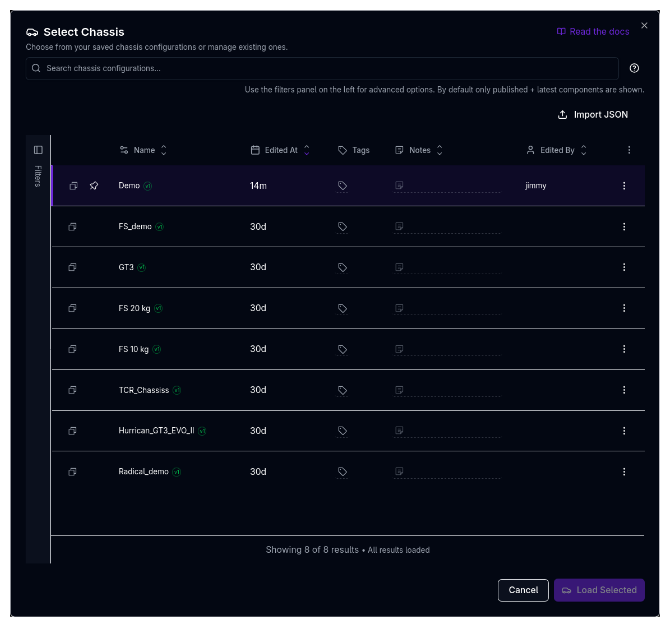
When you open the Setup Selector, you'll see a table view of all saved components under the current component type. The interface consists of:
Header Bar
- Search input - Filter by setup name, tag names, or note content
- Help icon - Shows keyboard shortcuts for selection and loading
- Active filter chips - Display current filters with quick remove buttons
Command Bar
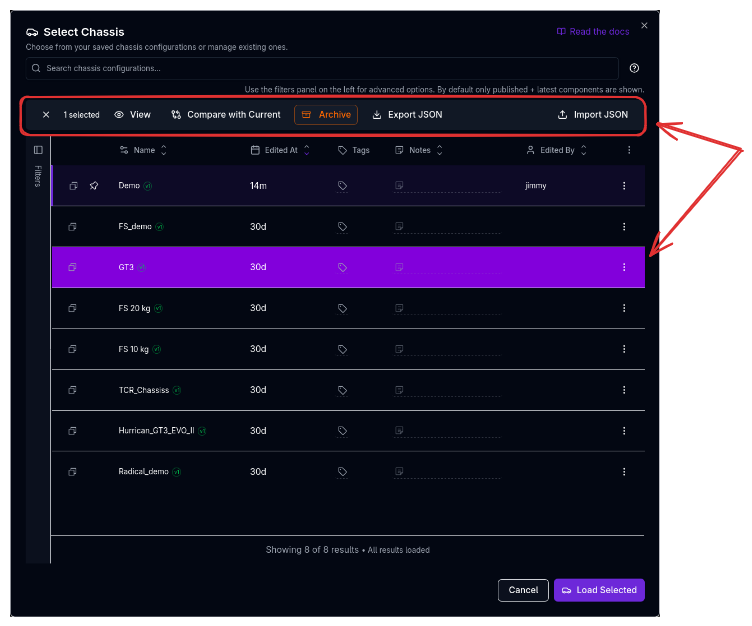
Always visible at the top of the table area, the command bar shows:
- Selection count - When items are selected (e.g., "2 selected")
- Clear selection - Button to deselect all items
- View - View full details of a single component
- Compare - Compare two or more selected components
- Compare with Current - Compare selected item against currently loaded setup
- Archive - Archive selected items (orange button)
- Export JSON - Export selected component as JSON file
- Import JSON - Import a component from a JSON file
Filters Sidebar
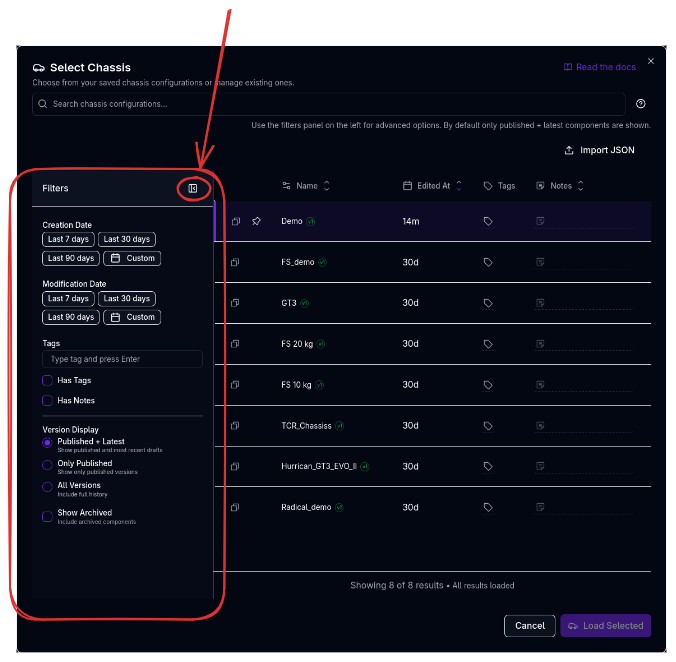
Collapsible sidebar on the left with advanced filtering options:
- Creation Date - Quick filters (Last 7/30/90 days) and custom date range
- Modification Date - Quick filters and custom date range
- Tags - Add/remove tags and filter by "Has Tags"
- Has Notes - Filter for setups with or without notes
- Version Display - Published + Latest, Only Published, or All Versions
- Show Archived - Include archived components in results
Table View
Each entry displays:
- Actions column - Duplicate, Restore (archived), View, Compare, Archive, Export
- Name - The setup name with ID badge showing version number
- Edited At - When the setup was last modified
- Tags - Labels for organization (inline editable)
- Notes - Documentation or comments (inline editable)
- Edited By - Team member who last modified it
The currently active setup is highlighted with a left border accent and pin icon.
Loading a Setup
To switch to a different setup:
- Click on the setup you want to load (it will highlight in purple)
- Click the "Load Selected" button in the footer
- The component will update with the selected configuration
Alternatively, double-click a setup to load it immediately and close the dialog.
Quick Load
Double-click any row to load it instantly without needing to click "Load Selected".
Version History
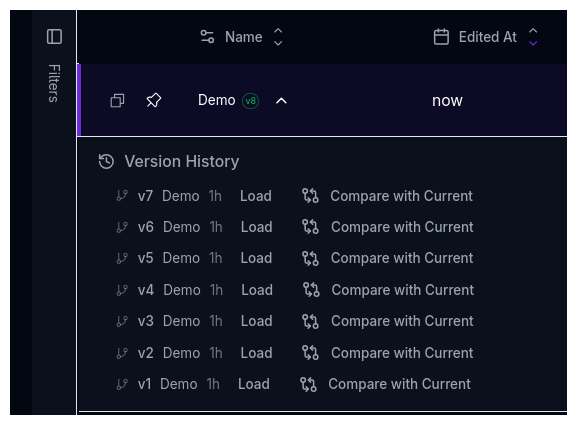
Setups that have previous versions show an expand button next to their name. Click it to reveal the version history, showing older versions with their published status and timestamps. You can load any previous version directly from the history.
Tag Management
Tags help you organize and categorize your setups for easy retrieval.
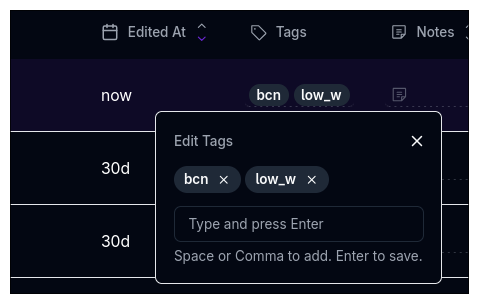
Adding Tags
- Click the tag cell next to a setup in the table
- Type the tag name (e.g., "race", "qualifying", "wet weather")
- Press Enter to save
Adding Multiple Tags
Separate tag names with commas to add several at once:
Using Tags
Tags make it easy to:
- Group similar setups together
- Find setups for specific conditions
- Filter by track, weather, or tyre compound
- Organize team workflows
Tag Naming
Use consistent tag names across your team for better organization. Consider creating a tagging convention like "track-name", "condition", "purpose".
Multi-Select Operations
Selecting Multiple Setups
You can select multiple setups using:
- Click - Select a single item
- Ctrl+Click (Cmd+Click on Mac) - Add individual items to selection
- Shift+Click - Select a range of items
A command bar appears at the top showing how many items are selected, with a clear button and bulk actions.
Duplicating a Setup
Click the copy icon on any row to duplicate that setup. This creates an exact copy that you can then rename and modify.
Archiving Setups
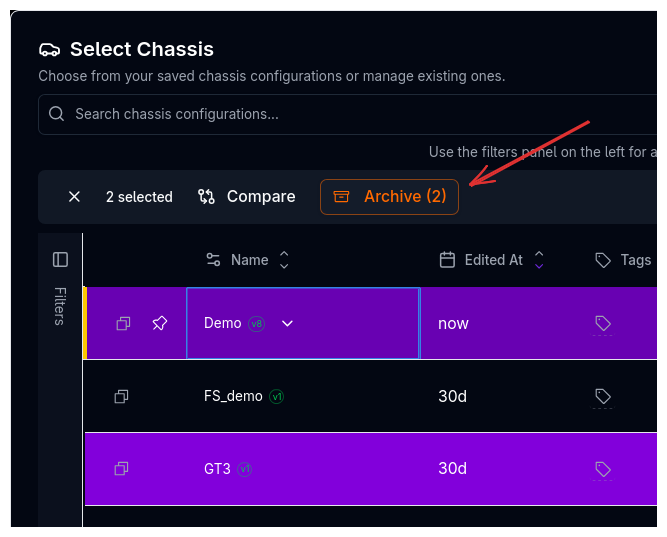
Archiving replaces permanent deletion, allowing you to clean up your setup list while keeping the ability to restore items later.
To archive setups:
- Select one or more setups
- Click the archive icon (orange) in the command bar
- Confirm the archive operation
Archiving vs Deleting
Archived setups are hidden from the default view but can be restored at any time. Use the "Show Archived" filter to view and restore archived setups.
Restoring Archived Setups
- Open the Filters sidebar and enable Show Archived
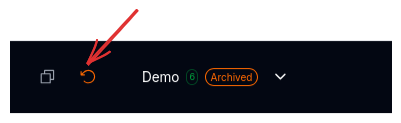
- Archived setups appear with an "Archived" badge
- Click the restore icon on any archived setup to unarchive it
Searching and Filtering
The Setup Selector includes powerful search and filtering capabilities.
Basic Search
Type in the search bar to filter by setup name, tag names, or note content.
Advanced Filters
Click the Filters button in the sidebar to open the advanced filters panel with the following options:
Date Filters
- Creation Date - Filter by when the setup was originally created
- Modification Date - Filter by when the setup was last edited
Quick date buttons: Last 7 days, Last 30 days, Last 90 days
Custom date range using the calendar picker.
Tags Filter
- Tag input - Type and press Enter to add tags
- Has Tags checkbox - Only show setups that have at least one tag
Notes Filter
- Has Notes checkbox - Only show setups with notes
Version Display Filter
- Published + Latest (default) - Show published and most recent drafts
- Only Published - Show only published versions
- All Versions - Include full version history
Show Archived
- Show Archived checkbox - Include archived components in results
Active filters are shown as chips below the search bar. Click the X on any chip to remove that filter, or click Clear All to reset everything.
Filter Persistence
Your filter settings are saved per component type. When you reopen the Setup Selector, your previous filters are automatically restored.
Default View
By default, only published components and the latest version of each component are shown. Use the advanced filters to see all versions or archived items.
Sorting
Click any sortable column header to sort by that field. Click again to toggle between ascending and descending order. Sort indicators appear next to the column name.
Comparison Features
View Single Component
Select a single item and click View to see all fields and details in a comparison view.
Compare Two or More
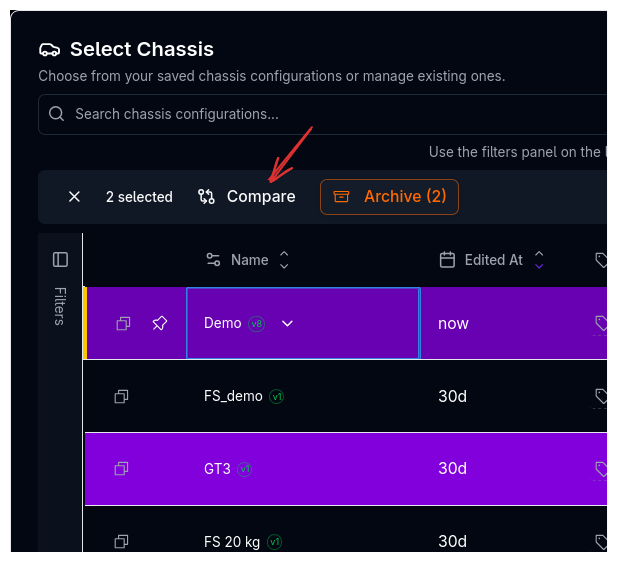
Select multiple items and click Compare to open the comparison view showing differences between setups.
Compare with Current
When a different setup is selected, you can compare it against the currently loaded setup to see what has changed.
Import and Export
Export as JSON
Select a single setup and click Export JSON to download the component data as a JSON file. This can be used for backup or to share setups externally.
Import from JSON
Click Import JSON and select a JSON file to import a previously exported component. The new component will be added to your library.
Component Limits
Depending on your subscription tier, you may have a limit on the number of components you can create. The Setup Selector shows a usage indicator when you're approaching your limit.
Common Workflows
Organizing Setups by Track
- Add track name as a tag to each setup (e.g., "silverstone", "spa")
- Use the tag filter in the sidebar to filter by track
- Quickly compare different configurations for the same track
Finding Recent Changes
- Open the filters sidebar
- Set the modification date to "Last 7 days" or custom range
- Review what your team has been working on
Cleaning Up Old Setups
- Sort by "Edited At" column
- Use Shift+Click to select old setups
- Archive outdated configurations (they can be restored if needed)
ID Badge
Each setup name is accompanied by an ID badge showing the version number:
| Visual | Meaning |
|---|---|
| Green text/border | Latest component |
| Orange text/border | Not Latest component |
| "A" suffix | Archived component |
Hover over the badge to see full metadata including:
- Version number
- Whether it's the latest version
- Archived status
- Created date and time
- Last modified date and time
- Who edited it
Next Steps
- Learn about the Setup Command Palette for managing individual setups
- Explore Getting Started to create your first setup
- Read about User Settings to customize your experience