User Settings
Manage your account, team collaboration, billing, and API access from the User Settings page. Access it from the initials button in the top-right corner of the platform.
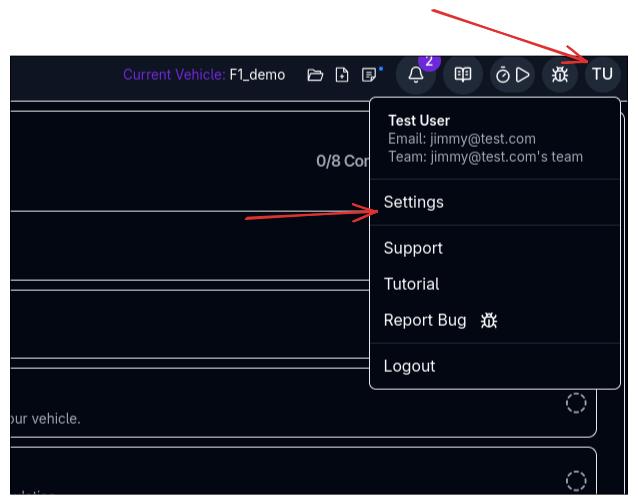
Overview
The User Settings page provides complete control over:
- User Data - Account information and cache management
- Team Management - Collaborate with team members
- Password Security - Update account credentials
- Billing - Subscription and payment management
- API Access - Integration keys for external tools
User Data
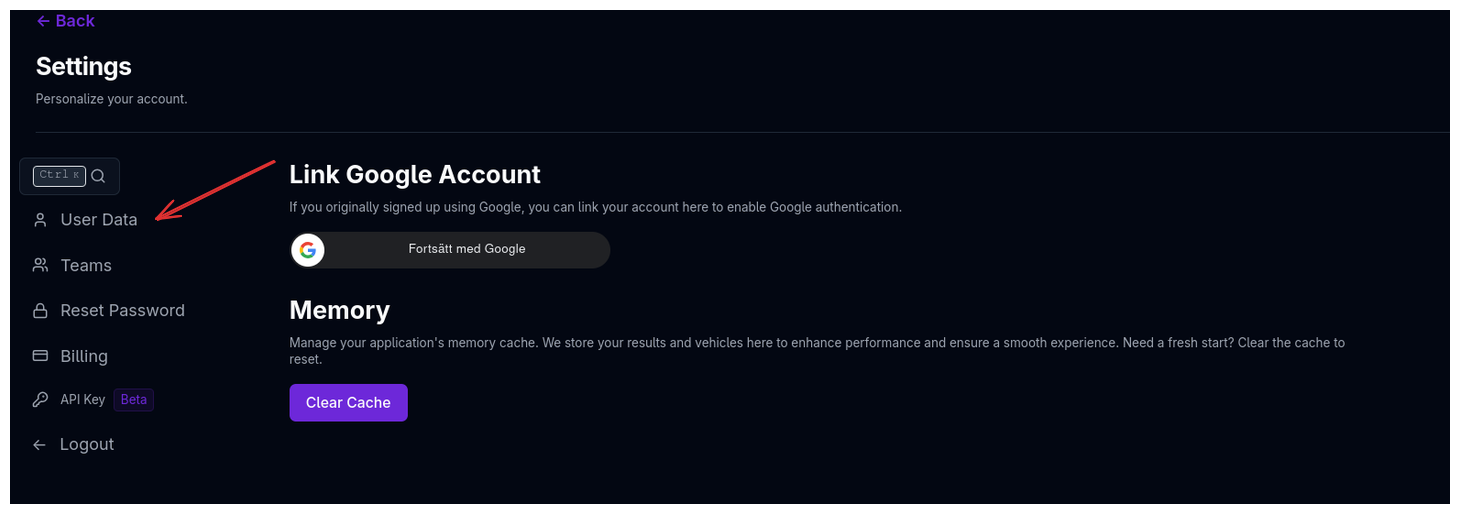
Manage your display profile, Google account connection, and platform cache.
Profile
Update your profile picture and first and last name.
Account Information
View your associated google account.
Clear Cache
Clear locally stored data to:
- Resolve display issues
- Free up browser storage
- Reset component selections
Cache Clearing
Clearing cache will log you out and remove locally stored preferences. Your saved configurations are not affected.
When to clear cache:
- Components not loading correctly
- Experiencing UI glitches
- After browser updates
- Before troubleshooting issues
Team Management
Collaborate with colleagues by managing team members, roles, and permissions.
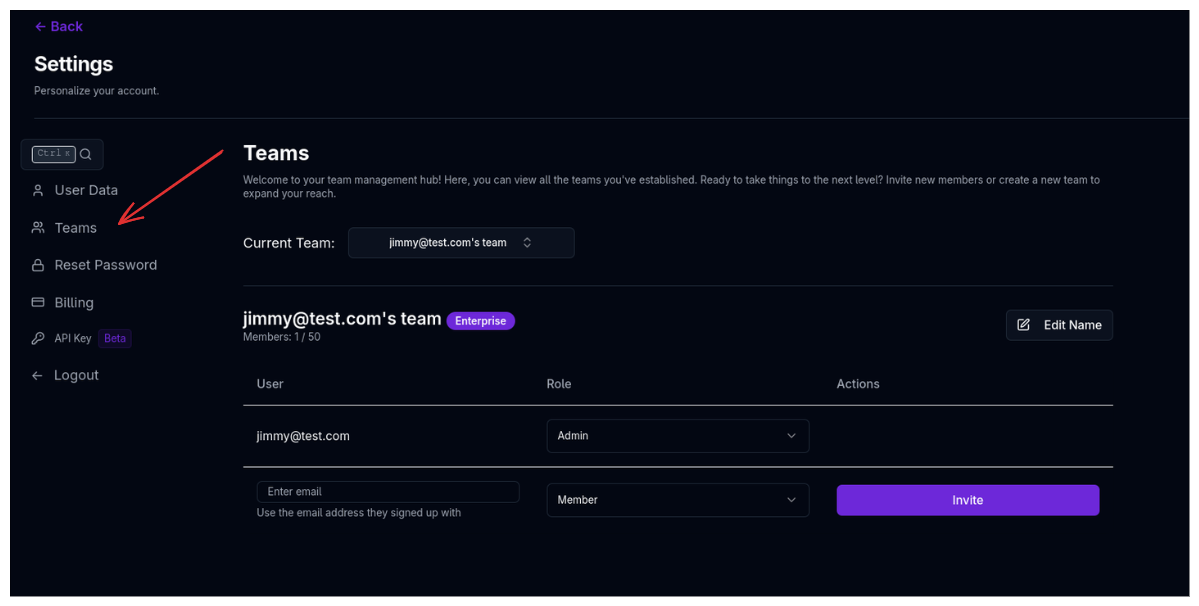
Team Overview
View your team's:
- Team Name - Organization identifier
- Member Count - Number of active team members
- Your Role - Admin or Member
Inviting Team Members
- Enter the teammate's ARD email address
- Select their role (Admin or Member)
- Click Invite
- The user receives an email invitation
- They accept and can toggle between teams
Email Requirements
Team members must already have an ARD account. They'll receive an invitation to join your team.
Roles and Permissions
Admin
Full access to:
- Invite/remove team members
- Modify team settings
- Manage billing
- Access all team configurations
- Delete components
Member
Standard access to:
- Create and modify components
- Run simulations
- View all team data
- Share configurations
Role Changes
Only team admins can modify member roles. Role changes take effect immediately.
Switching Teams
If you're a member of multiple teams:
- Open User Settings
- Go to Team section
- Select the team from the dropdown
- Click Switch Team
- Platform reloads with new team context
All configurations are team-specific. Switching teams changes:
- Available components
- Simulation history
- Shared setups
- Billing information
Reset Password
Update your account password for security or recovery.
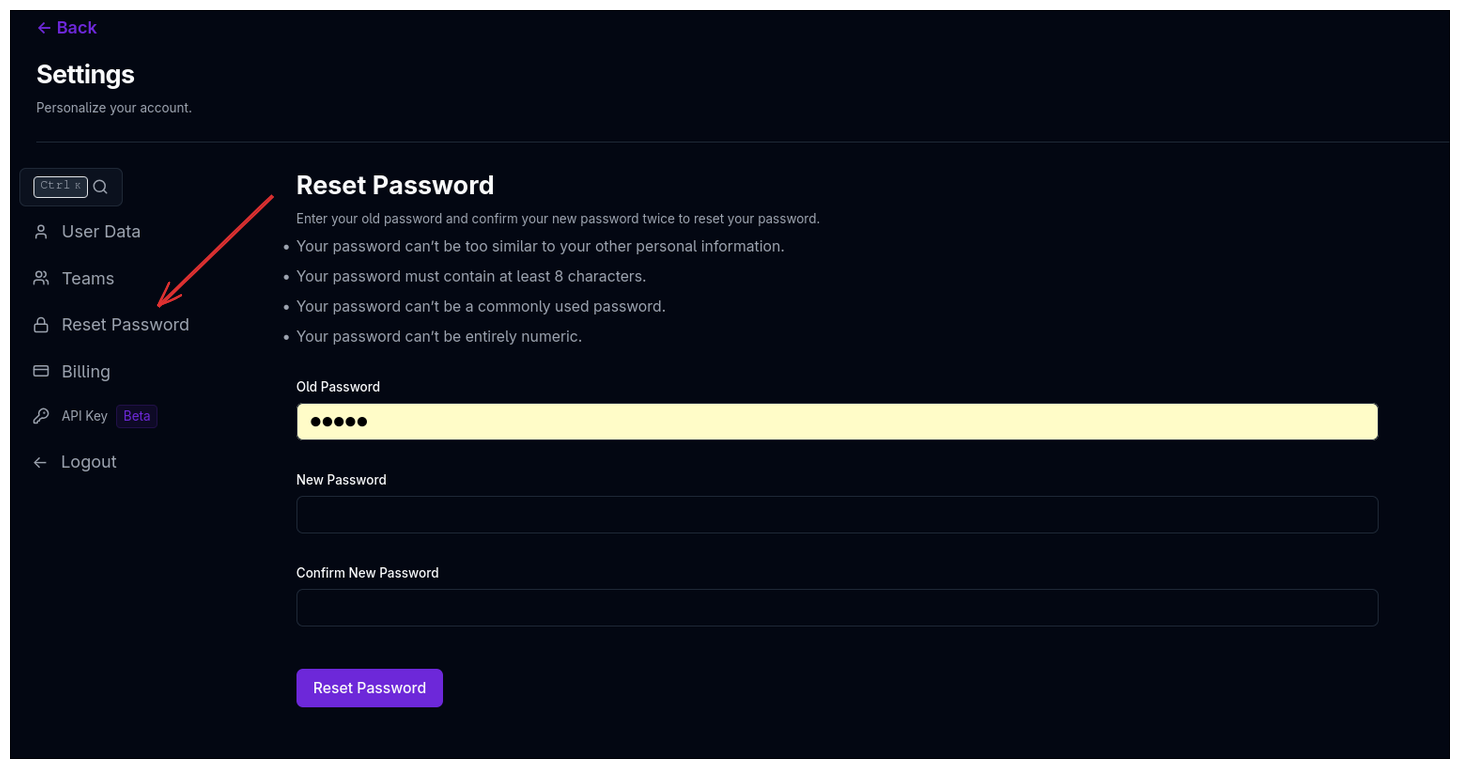
Changing Your Password
- Enter your current password
- Enter your new password
- Confirm the new password
- Click Update Password
Google SSO Users
If you signed up with Google, manage your password through your Google account settings.
Password Requirements
Your password must:
- Be at least 8 characters long
- Include uppercase and lowercase letters
- Contain at least one number
- Include at least one special character
Security Best Practices
- Use a unique password for ARD
- Update passwords every 90 days
- Enable two-factor authentication (if available)
- Never share your password with team members
Billing
View subscription details and manage payments.
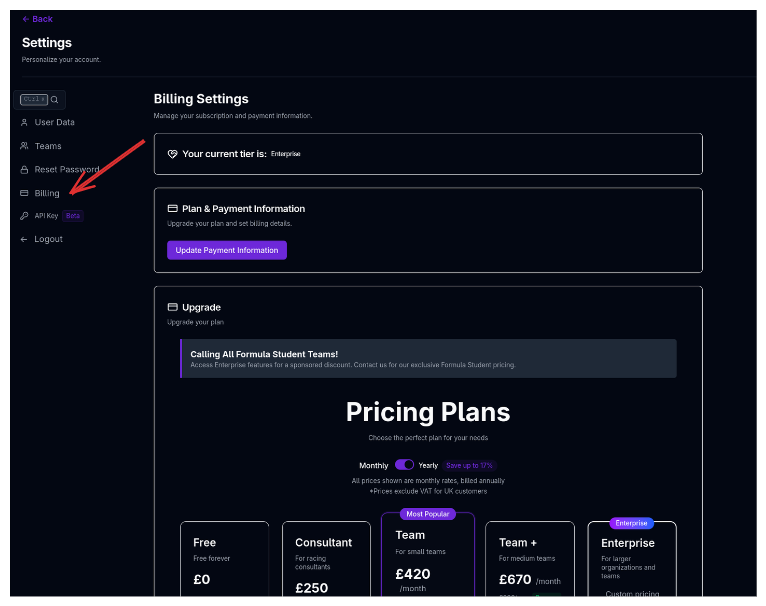
Subscription Information
View your:
- Current Plan - Free, Consultant, Team, Team+, or Enterprise
- Billing Cycle - Monthly or Annual
- Next Billing Date - When payment is due
- Payment Method - Card details on file
Available Plans
Free
- Point mass simulation
- Limited storage
- Community support
- Price: £0/month
Consultant
For racing consultants:
- QSS lap time simulation
- Kinematics, ride analysis, handling
- Calculations page
- 1 seat
- 250 simulation credits/month
- Store up to 2,500 simulations
- Advanced sweeping (max 1 component per sweep)
- Price: £300/month or £250/month (billed annually)
Team
For small teams (Most Popular):
- All Consultant features
- Up to 3 seats
- 2,000 simulation credits/month
- Store up to 10,000 simulations
- Advanced sweeping (max 5 components per sweep)
- Price: £500/month or £420/month (billed annually)
Team+
For medium teams:
- All Team features
- Fully dynamic lap time simulation (BETA)
- Up to 5 seats
- 5,000 simulation credits/month
- Store up to 10,000 simulations
- Unlimited sweeping configurations
- Price: £800/month or £670/month (billed annually)
Enterprise
For larger organizations and teams:
- All Team+ features
- Up to 50 seats
- 10,000 simulation credits/month
- Unlimited storage
- API access for integration
- Price: Custom pricing (contact sales)
Simulation Credits
Most simulations cost 1 credit per run. Dynamic simulations cost 10 credits per run. Credits reset monthly and don't roll over.
Managing Your Subscription
Upgrade Plan:
- Click Upgrade next to your current plan
- Select the new plan tier
- Enter payment information
- Confirm upgrade
Update Payment Method:
- Click Update Payment Method
- Enter new card details
- Save changes
Cancel Subscription:
- Contact support via the billing page
- Confirm cancellation
- Access continues until end of billing period
Subscription Changes
Upgrades take effect immediately. Downgrades take effect at the end of your current billing cycle.
API Access
Generate and manage API keys for external integrations and automation. Available on Enterprise plans.
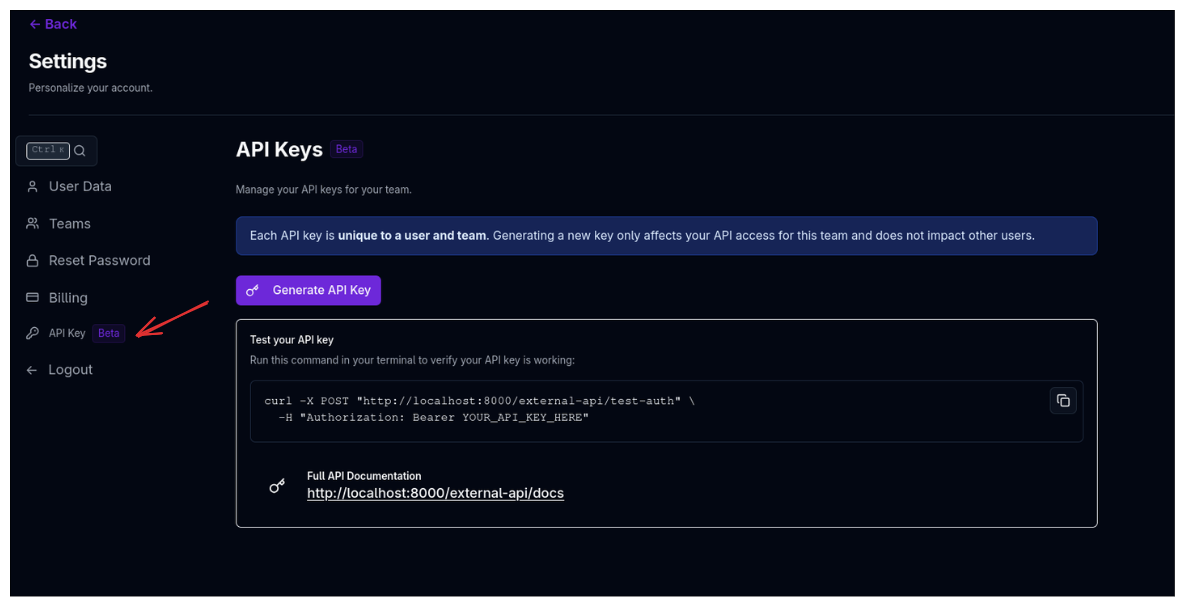
API Overview
Use the ARD API to:
- Submit simulations programmatically
- Retrieve results automatically
- Integrate with analysis tools
- Automate parameter studies
- Build custom workflows
Team-Specific Keys
Each API key is unique to a user and team. Generating a new key only affects your API access for this team and does not impact other users.
Generating Your API Key
If this is your first time:
- Click Generate API Key
- Your key will be displayed only once
- Copy the key immediately and store it securely
One-Time Display
This is the only time your API key will be shown. Store it securely - you cannot retrieve it again.
Regenerating Your API Key
If you already have a key and need to regenerate it:
- Find your username in the API keys list
- Click the key icon to regenerate
- Your old key becomes invalid immediately
- Copy the new key and update your integrations
Security Warning
API keys grant full access to your account. Store them securely and never commit them to version control or share them publicly.
Admin: Revoking Team Member Keys
Team admins can revoke API keys for any team member:
- Find the team member in the API keys list
- Click the trash icon
- Confirm revocation
- The key becomes invalid immediately
Testing Your API Key
Use the provided curl command to test your API key:
curl -X POST "https://api.appliedracingdynamics.com/external-api/test-auth" \
  -H "Authorization: Bearer YOUR_API_KEY_HERE"
A successful response confirms your key is working correctly.
API Documentation
Full API documentation with interactive schema is available at:
https://api.appliedracingdynamics.com/external-api/docs
The documentation includes:
- Authentication methods
- All available endpoints
- Request/response schemas
- Example requests
- Error codes and handling
Example Usage
import requests

API_KEY = "your-api-key-here"
headers = {"Authorization": f"Bearer {API_KEY}"}

# Example: Test authentication
response = requests.post(
    "https://api.appliedracingdynamics.com/external-api/test-auth",
    headers=headers
)

print(response.json())
Best Practices
Regular Reviews
Review your User Settings monthly to ensure team access and billing information are current.
Team Organization
Use clear naming conventions for team members and roles to maintain organization as your team grows.
API Security
Store API keys in environment variables or secure key management systems, never in code.
Password Management
Use a password manager to generate and store strong, unique passwords.
Navigation
Use the tabs to navigate between different settings sections:
- User Data
- Team
- Reset Password
- Billing
- API Access
Next Steps
- Set up team collaboration in Team Management
- Explore API integrations in API Access
- Monitor team activities in Activity Centre
- Understand roles in Component Hierarchy
Keep your User Settings up to date to ensure smooth collaboration and secure access to the platform.