Parameter Sweep
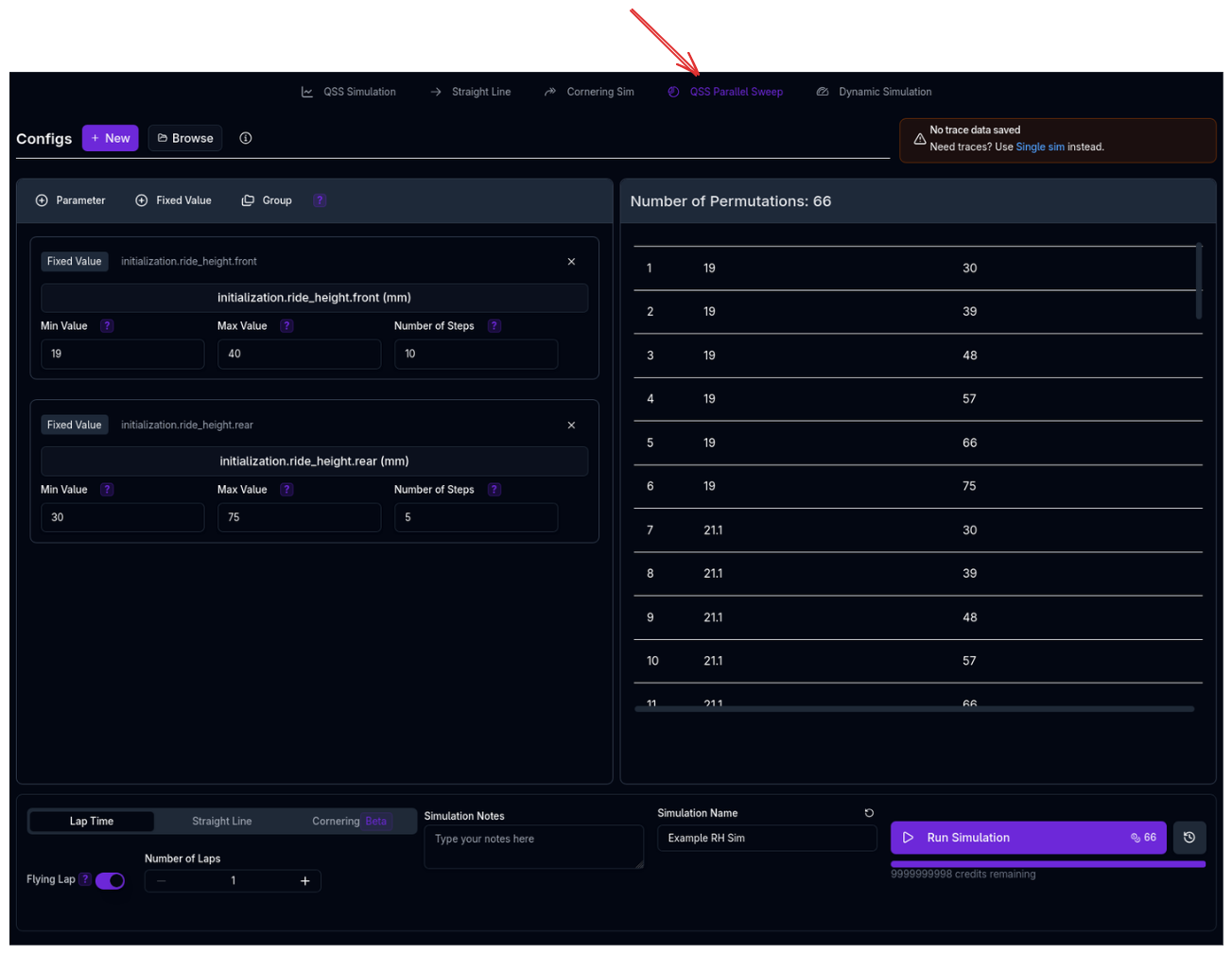
The Parameter Sweep runs multiple simulations automatically while varying one or more vehicle parameters. It is the most powerful tool in ARD for understanding sensitivity, finding optimal setups, and exploring trade-offs across your vehicle configuration.
Overview
A parameter sweep takes your current vehicle setup and systematically varies chosen parameters — running a full simulation for every combination. Instead of manually changing a spring rate, running a simulation, recording the result, changing it again, and repeating, the sweep automates the entire process and presents the results together for comparison.
Sweeps can run any of the three QSS-family simulation types:
- Lap Time (QSS) — Evaluate how parameter changes affect lap time
- Straight Line — Evaluate how changes affect the aero platform and ride heights across a speed range
- Cornering (beta) — Evaluate how changes affect peak lateral acceleration across a speed range
How Racing Teams Use It
Parameter sweeps are central to systematic vehicle development:
- Spring rate optimisation — Sweep front and rear spring rates to find the combination that minimises lap time or optimises aero platform behaviour
- Ride height studies — Sweep ride heights to understand the sensitivity of downforce, drag, and balance to platform position
- Aero configuration comparison — Sweep through saved aero setups (e.g., different wing angles or bodywork packages) to compare their lap time impact
- Anti-roll bar tuning — Sweep ARB rates to understand the trade-off between cornering balance and mechanical grip
- Weight sensitivity — Sweep ballast mass or fuel load to quantify the performance cost per kilogram
- Multi-parameter interaction — Sweep two or more parameters simultaneously to find interactions (e.g., spring rate and ride height together)
Sweep Before You Iterate
A common mistake is to make setup changes one at a time based on intuition. A sweep across the realistic range of a parameter often reveals that the sensitivity is non-linear or that the optimum is not where expected. Spending credits on a sweep upfront can save many manual iterations.
Sweep Types
The sweep system supports two types of sweep dimensions:
Parameter Sweeps
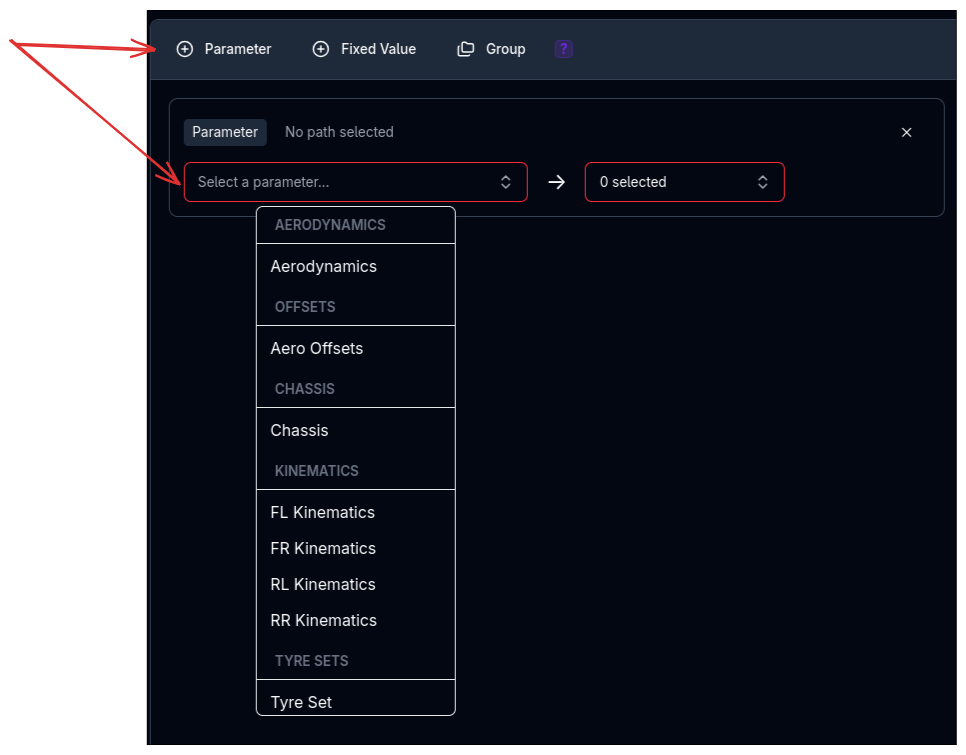
Select a vehicle subsystem (e.g., aerodynamics, suspension) and choose from your saved setups for that component. The sweep will run a simulation with each selected setup applied in turn.
This is useful when you have discrete configurations to compare — for example, three different aero packages or four different spring sets.
Numeric Sweeps (Fixed Value)
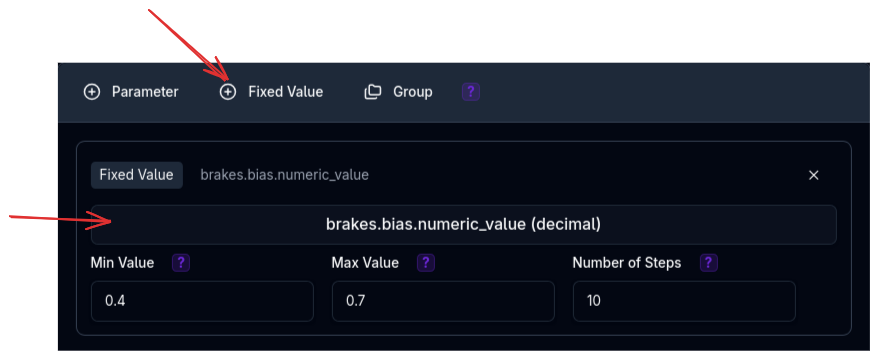
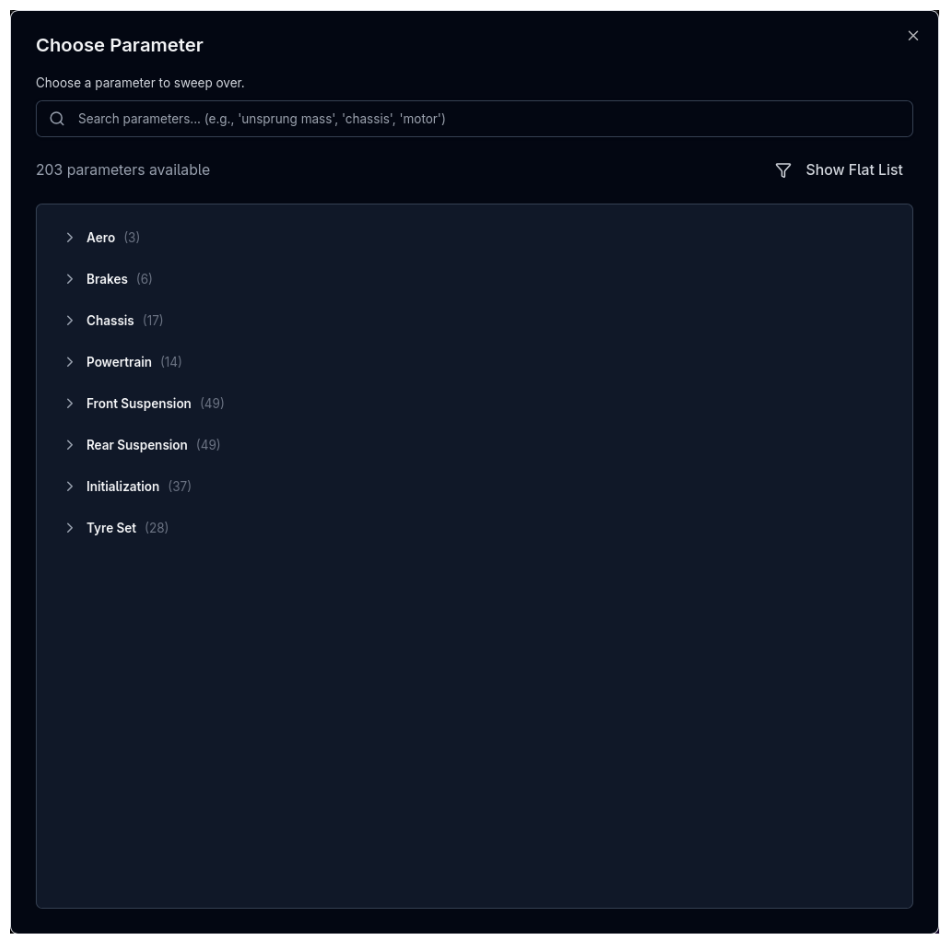
Pick a specific numeric parameter (e.g., frontal area, spring rate, ride height) and define a range with minimum, maximum, and number of steps. The sweep generates evenly spaced values across the range and runs a simulation at each.
| Setting | Description |
|---|---|
| Min | The lower bound of the sweep range |
| Max | The upper bound of the sweep range |
| Steps | The total number of values generated, evenly spaced from Min to Max inclusive (e.g., 4 steps from 0 to 100 gives 0, 33.3, 66.7, 100). Follows the same convention as numpy linspace. |
Units
Numeric sweep values are entered in the displayed unit for that parameter (e.g., N/mm for spring rates, mm for ride heights). The system converts values to SI units internally before running the simulation.
Symmetric Parameters
For parameters that should be mirrored left-to-right (e.g., left and right spring rates), enable the symmetric option. The sweep will automatically apply the same value to both sides.
Grouping
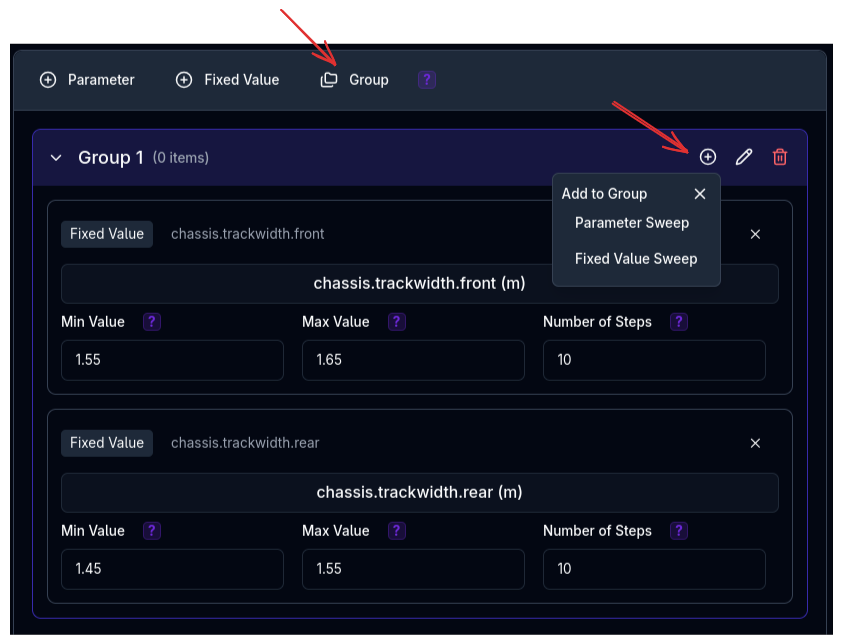
By default, each sweep dimension is independent — the sweep generates every possible combination of all parameter values. For example, sweeping 3 aero setups and 4 spring rates produces 3 x 4 = 12 simulations.
Groups change this behaviour. Components within a group move through their values together, index by index, rather than generating all combinations. This is useful when you have paired configurations that should always be tested together.
For example, if you group a front spring sweep (3 values) with a rear spring sweep (3 values), the sweep runs 3 simulations (pairing the first front with the first rear, second with second, etc.) rather than 9.
Group Size Consistency
All components in a sweep group must have the same number of values. For parameter sweeps, this means the same number of selected setups. For numeric sweeps, this means the same number of steps. The sweep will warn you if a group is inconsistent.
Simulation Type Configuration
After defining your sweep parameters, choose which simulation type to run for each combination:
Configure the same settings as a single Lap Time Simulation:
- Flying Lap or Standing Start
- Lap Count (for EV/hybrid energy tracking)
Configure a speed range for the Straight Line Simulation:
- Min Speed and Max Speed
- Speed Unit (km/h, m/s, mph)
Beta Feature
Cornering sweeps are currently in beta. Behaviour may change in future releases.
Configure a speed range for the Cornering Simulation:
- Min Speed and Max Speed (minimum 10 m/s)
- Speed Unit (km/h, m/s, mph)
The Combination Table
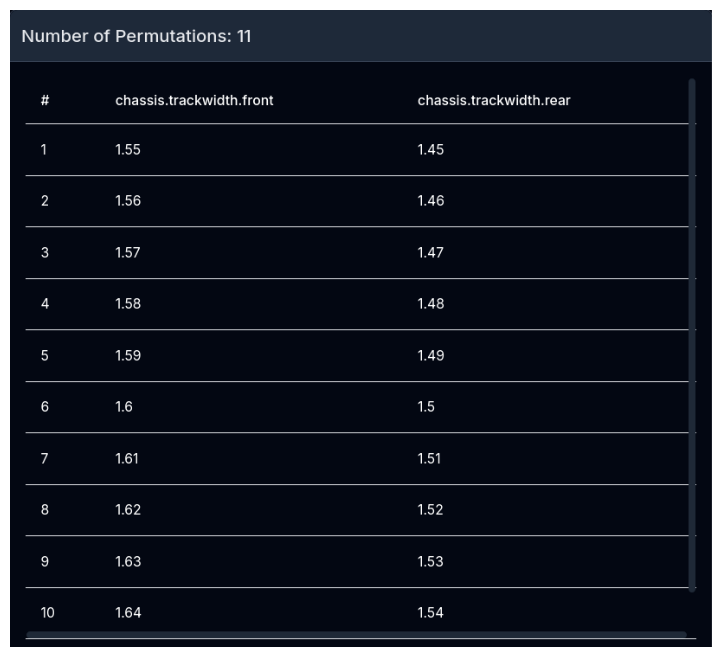
As you add sweep dimensions, the Combination Table on the right side of the page shows every parameter combination that will be simulated. Each row represents one simulation run, and each column shows the parameter value for that run.
The Number of Permutations displayed at the top tells you exactly how many simulations will be queued. This directly affects credit cost — each permutation costs the same as running a single simulation of that type.
Running a Sweep
- Navigate to the Sweep page under Simulations
- Add one or more sweep dimensions using the Parameter or Fixed Value buttons
- For each dimension, select the parameter path and configure its values or setups
- Optionally create Groups to pair dimensions that should move together
- Review the Combination Table to verify the permutations look correct
- Select the simulation type (Lap Time, Straight Line, or Cornering) and configure its settings
- Enter a Simulation Name and optional notes
- Click Run Simulation
Save Your Sweep Configuration
Use the config bar at the top of the sweep page to save and load sweep configurations. This lets you re-run the same sweep after making vehicle changes, or share sweep setups with your team.
Understanding Results
Sweep results are designed for comparison across configurations:
- Metrics — View summary metrics (lap time, max speed, sector times) for all permutations side by side
- Parallel Coordinate Plots — Visualise how swept parameters relate to performance outcomes across all permutations simultaneously
No Trace Data
Sweep simulations save metrics only — full trace data (per-point channels like speed, g-force, ride heights) is not stored for sweeps. If you need trace-level detail for a specific configuration, identify the interesting permutation from the sweep results and run it as a single simulation using the Lap Time, Straight Line, or Cornering page.
Tips & Best Practices
Start Coarse, Then Refine
Begin with a wide range and few steps (e.g., 3-5 values) to understand the general sensitivity. Once you identify the interesting region, run a second sweep with a narrower range and more steps to find the precise optimum.
Sweep One Thing at a Time First
Before running multi-dimensional sweeps, sweep each parameter individually. This gives you a clear picture of each parameter's sensitivity before introducing interaction effects.
Use Groups for Paired Changes
If you always change front and rear springs together (e.g., maintaining a stiffness ratio), group them so they step together rather than creating a full factorial combination.
Check Permutation Count Before Running
Multi-dimensional sweeps grow quickly. Sweeping 5 parameters with 5 steps each creates 5^5 = 3,125 simulations. Use groups and smaller step counts to keep the permutation count manageable and cost-effective.
Credit Cost
Each permutation in a sweep costs the same as a single simulation. A sweep with 20 permutations costs 20x the single-simulation credit cost. Check the permutation count and your remaining credits before launching a large sweep.
Subscription Limits
Your subscription tier determines the maximum number of permutations per sweep and the maximum number of sweep dimensions you can add. If you exceed either limit, the Run button will be disabled and a message will indicate which limit has been reached. Upgrade your subscription to increase these limits.
Related Topics
- Lap Time Simulation (QSS) — The simulation type most commonly used in sweeps
- Cornering Simulation — Sweep cornering performance across parameter variations
- Straight Line Simulation — Sweep aero platform behaviour across parameter variations
- Metrics — View sweep results summary
- Parallel Coordinate Plots — Visualise multi-dimensional sweep results